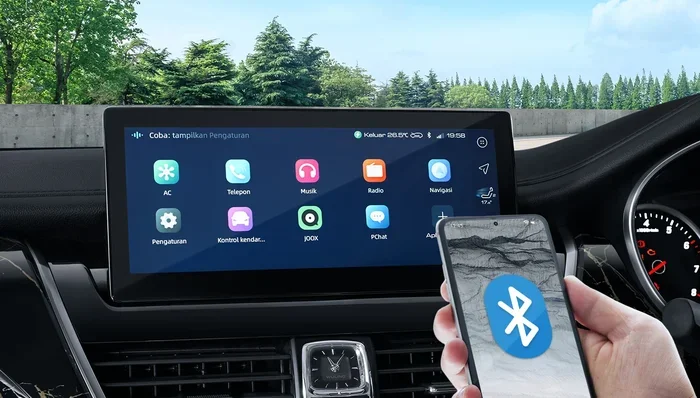
How Do I Connect My Phone Maps to My Car Step by Step
Learning how do I connect my phone maps to my car is easier than you think. This guide walks you through every method, from Bluetooth pairing to USB cables and wireless systems like Apple CarPlay and Android Auto. You will get clear, step-by-step instructions to set up hands-free GPS navigation, voice commands, and real-time map updates on your car infotainment system.
Have you ever sat in your car, ready to hit the road, and realized you have no idea how do I connect my phone maps to my car? You are not alone. Millions of drivers face this question every single day. The good news is that connecting your phone maps to your car is simpler than most people think. Whether you drive a new vehicle or an older model, there is a method that will work for you.
This guide covers every connection method you can think of. We will walk you through Bluetooth pairing, USB cable setup, and modern systems like Apple CarPlay and Android Auto. By the end, you will feel confident connecting your phone maps to your car in just a few minutes. Let us get started.
Key Takeaways
- Bluetooth Pairing: The most common wireless method for connecting phone maps to car systems.
- USB Cable Connection: Offers the most stable and reliable link for GPS navigation and map updates.
- Apple CarPlay and Android Auto: Modern smartphone integration tools that mirror your phone screen on the car display.
- Wireless Connection: Newer cars support wireless phone mirroring without any cables at all.
- Voice Commands: Once connected, you can control maps hands-free for safer driving.
- Troubleshooting Matters: Knowing common fixes saves time when connections fail or drop.
📑 Table of Contents
- Why Connecting Phone Maps to Your Car Matters
- Methods to Connect Your Phone Maps to Your Car
- Step-by-Step Guide: Connecting via Bluetooth
- Step-by-Step Guide: Connecting via USB Cable
- Apple CarPlay and Android Auto Setup
- Comparison: Bluetooth vs USB vs Wireless CarPlay/Android Auto
- Troubleshooting Common Connection Issues
- Quick Tips for the Best Phone Maps Experience
- Common Mistakes to Avoid
- Expert Insights on Smartphone Integration
- Final Thoughts
Why Connecting Phone Maps to Your Car Matters
Using your phone maps on a big car screen makes driving safer and more convenient. Instead of squinting at a small phone screen on the dashboard, you get clear driving directions right in front of you. This means less distraction and more focus on the road.
Here are some key reasons why smartphone integration matters so much:
- Hands-free navigation: You keep your eyes on the road and hands on the wheel.
- Larger display: Car screens show maps more clearly than phone screens.
- Real-time traffic updates: Your navigation app stays current with live traffic data.
- Voice commands: You can search for destinations without touching your phone.
- Seamless experience: Maps, music, and calls all work together through your car infotainment system.
When you learn how do I connect my phone maps to my car, you unlock all of these benefits at once. It transforms your daily commute and long road trips alike.
Methods to Connect Your Phone Maps to Your Car
Not all cars are the same, and neither are connection methods. The right approach depends on your car model, phone type, and year of manufacture. Below, we break down the most popular ways to get your GPS navigation running on your car screen.
Bluetooth Connection
Bluetooth is the most common wireless method for smartphone integration. Almost every car made after 2010 supports Bluetooth pairing. It lets you stream phone maps to your car screen and make hands-free calls without any cables.
The wireless connection is convenient, but it does have some limits. Bluetooth may not support real-time map updates as smoothly as a USB cable. Still, for everyday navigation, Bluetooth works great for most drivers.
USB Cable Connection
A USB cable gives you the most stable and reliable link between your phone and your car. It provides power to your phone, supports map updates, and delivers the fastest data transfer. If you want the best performance for your navigation app, USB is the way to go.
Most cars have a USB port in the center console or dashboard. Simply plug in your phone, and your car should recognize it. From there, you can access phone maps directly through your car infotainment system.
Apple CarPlay and Android Auto
Apple CarPlay and Android Auto are the gold standards for smartphone projection. These systems mirror your phone screen onto your car display. They give you access to maps, music, messages, and more, all controlled through your car interface.
Apple CarPlay works with iPhones, while Android Auto works with Android phones. Both support wireless connection in newer vehicles. They also offer voice command features that let you control maps without lifting a finger.
Wireless CarPlay and Wireless Android Auto
If your car supports wireless CarPlay or wireless Android Auto, you can skip the cables entirely. Your phone connects to the car infotainment system through a wireless connection. This is the most modern and convenient option available today.
Keep in mind that not all cars have this feature. You may need a wireless adapter if your car only supports wired connections. These adapters plug into the USB port and enable wireless smartphone integration with ease.
Built-In Navigation Systems
Some cars come with their own built-in GPS navigation. These systems do not rely on your phone at all. However, many drivers still prefer using phone maps because they offer more up-to-date map data, better traffic routing, and familiar interfaces.
If your car has a built-in system, you can still use your phone maps alongside it. Just follow the connection steps below, and you will have both systems working together.
Step-by-Step Guide: Connecting via Bluetooth
Bluetooth pairing is the first method most people try. It is simple, wireless, and works with almost every phone and car combination. Here is exactly how to set it up.
Step 1: Prepare Your Car and Phone
Start by turning on your car or setting it to accessory mode. Make sure Bluetooth is turned on in your car settings. On your phone, go to settings and enable Bluetooth as well. Both devices need to be visible to each other.
Quick Tips:
- Turn off Bluetooth on other nearby devices to avoid connection conflicts.
- Make sure your phone is charged or plugged in before starting.
- Restart both devices if you have trouble finding each other.
Step 2: Pair the Devices
On your car display, go to the Bluetooth settings menu. Select the option to search for new devices. Your phone should appear in the list. Tap on your phone name on the car screen to begin pairing.
You may see a passkey on the car display. Enter this same passkey on your phone to confirm the connection. Once paired, your phone and car are linked.
Step 3: Enable Phone Maps and Navigation
After pairing, go to your car infotainment settings and set your phone as the audio and navigation source. Open your navigation app on your phone. It should now display on your car screen.
Make sure you grant permission for the app to access your location and send data to the car display. This is essential for GPS navigation to work properly through the car system.
Step-by-Step Guide: Connecting via USB Cable
A USB cable connection offers the most reliable experience for phone maps in your car. It supports faster data transfer, live map updates, and stable GPS signal reception.
Step 1: Find the Right Cable and Port
Use a high-quality USB cable that supports data transfer, not just charging. Many cheap cables only charge your phone and will not work for smartphone integration. Plug the cable into your phone and then into the car USB port.
Common car USB port locations include the center console, dashboard, and glove box area. Some cars have USB ports in the rear seats as well.
Step 2: Trust the Connection
When you plug in your phone, a prompt may appear on your phone screen asking if you trust this device. Tap “Trust” or “Allow” to proceed. This step is crucial for the car to access your phone maps and navigation data.
If no prompt appears, try a different USB port or a different cable. Some USB ports only provide power and no data connection.
Step 3: Access Maps on Your Car Screen
On your car display, navigate to the source or input menu. Select your phone as the connected device. Open your navigation app on your phone. The map should now appear on your car screen.
For the best experience, set your car display to mirror mode rather than extended mode. Mirror mode shows the same screen as your phone, which is ideal for driving directions and GPS navigation.
Apple CarPlay and Android Auto Setup
Apple CarPlay and Android Auto make connecting your phone maps to your car incredibly smooth. These systems are designed specifically for smartphone integration and offer the best user experience.
Setting Up Apple CarPlay
If you drive an iPhone, Apple CarPlay is your best friend. Plug your iPhone into the car using a Lightning or USB-C cable. The CarPlay icon should appear on your car display. Tap it, and your phone screen will mirror onto the car display.
You can also set up wireless CarPlay if your car and iPhone support it. Go to your car Bluetooth and WiFi settings, and look for the CarPlay option. Follow the on-screen prompts to complete the wireless connection.
Once connected, open the Maps app or any navigation app on your iPhone. It will appear on the car screen with full driving directions, voice commands, and hands-free controls.
Setting Up Android Auto
For Android users, Android Auto works in much the same way. Plug your Android phone into the car using a USB cable. The Android Auto icon should appear on your car display. Tap it to start the connection.
Wireless Android Auto is also available on newer phones and cars. You may need to download the Android Auto app from the Google Play Store and follow the setup wizard on your car screen.
Once connected, your navigation app will display on the car screen. You can use voice commands, touch controls, or steering wheel buttons to interact with your maps while driving.
Comparison: Bluetooth vs USB vs Wireless CarPlay/Android Auto
Choosing the right connection method depends on your needs. Here is a quick comparison to help you decide.
| Feature | Bluetooth | USB Cable | Wireless CarPlay/Android Auto |
|---|---|---|---|
| Connection Type | Wireless | Wired | Wireless |
| Stability | Moderate | High | High |
| Map Updates | Slow | Fast | Fast |
| Hands-Free Calling | Yes | Yes | Yes |
| Voice Commands | Yes | Yes | Yes |
| Setup Difficulty | Easy | Easy | Easy |
| Car Compatibility | Almost All | Most Cars | Newer Models |
| Phone Battery Drain | Low | Low (charges phone) | Low |
As you can see, each method has its strengths. Bluetooth is the most universal. USB offers the best stability. Wireless CarPlay and Android Auto give you the modern, cable-free experience.
Troubleshooting Common Connection Issues
Even when you follow every step correctly, things can go wrong. Connection issues are common, but most have simple fixes. Here are the problems you may face and how to solve them.
Phone Maps Not Displaying on Car Screen
If your navigation app does not appear on the car display, check a few things first. Make sure Bluetooth or USB is connected properly. Restart both your phone and your car infotainment system. Also, check that your navigation app has permission to access your location and display over other apps.
Sometimes, simply unplugging and replugging the USB cable or toggling Bluetooth off and on fixes the issue. Try this before digging into deeper troubleshooting.
Connection Drops Frequently
A dropped connection is frustrating. If your wireless connection keeps disconnecting, move your phone closer to the car center console. Interference from other devices can weaken the signal. Also, make sure your car firmware and phone software are up to date.
For USB issues, try a different cable or a different USB port. Cheap or damaged cables are the number one cause of unstable connections.
Voice Commands Not Working
Voice commands rely on a stable connection and proper app settings. Make sure your navigation app supports voice control. Check that your car’s microphone is not muted. If you use Bluetooth, ensure the hands-free profile is enabled in your car settings.
For Apple CarPlay and Android Auto, voice commands work best when the car’s built-in voice assistant is disabled. This prevents conflicts between two voice systems trying to control the same functions.
Quick Tips for the Best Phone Maps Experience
Follow these practical tips to get the most out of your connected phone maps setup:
- Update your maps regularly. Map updates ensure you get the latest roads, traffic data, and points of interest. Most navigation apps update automatically when connected to WiFi.
- Use a phone mount. Even with car screen mirroring, a phone mount keeps your phone visible and charged. It is a great backup solution.
- Enable notifications on your car display. This lets you see incoming calls and messages without touching your phone.
- Download offline maps. Offline maps work even without a data connection. This is a lifesaver in areas with poor cell coverage.
- Keep your cable organized. A tangled cable under the seat is annoying. Use a cable clip or a USB port adapter to keep things neat.
- Practice voice commands before your trip. Knowing a few voice commands helps you stay focused on the road.
Common Mistakes to Avoid
Avoid these common mistakes that trip up many drivers when setting up their phone maps:
- Using a charging-only cable: This is the most common mistake. A charging-only cable will not transfer data. Always use a cable that supports data transfer.
- Ignoring app permissions: Your navigation app needs location access and display permissions. Check these in your phone settings before connecting.
- Not updating your car software: Older car firmware may not support the latest connection methods. Check for car software updates at your dealer.
- Connecting too many devices: If multiple phones are paired with your car, it can cause connection conflicts. Remove old pairings you no longer use.
- Skipping the trust prompt: When you plug in your phone via USB, always tap “Trust” on your phone screen. Skipping this step blocks data access.
Expert Insights on Smartphone Integration
Automotive experts agree that smartphone integration has transformed the driving experience. According to industry reports, over 80 percent of new cars sold today support either Apple CarPlay or Android Auto. This shows how important phone-to-car connectivity has become.
Car manufacturers continue to improve car infotainment systems every year. Wireless connection technology is getting faster and more reliable. Map updates are more seamless. And voice command accuracy keeps improving with each software update.
If you own an older car, do not worry. You can still enjoy modern phone maps through Bluetooth or a simple USB adapter. Many aftermarket adapters cost under $50 and add wireless CarPlay or Android Auto support to any car with a USB port.
The key takeaway is that connecting your phone maps to your car is no longer a luxury. It is a basic expectation for modern driving. With the right setup, you get safer navigation, better traffic awareness, and a more enjoyable driving experience every single day.
Final Thoughts
Now you know exactly how do I connect my phone maps to my car. Whether you choose Bluetooth, USB, Apple CarPlay, or Android Auto, the process is straightforward and well worth the effort. Each method has its own advantages, and the best choice depends on your car model and personal preference.
Start with the method that matches your car and phone. Follow the steps in this guide carefully. Within minutes, you will have GPS navigation displayed on your car screen, voice commands at your fingertips, and hands-free driving directions keeping you safe on the road.
Do not let connection confusion hold you back. Try these steps today, and you will wonder how you ever drove without your phone maps connected to your car. Safe travels and happy navigating.