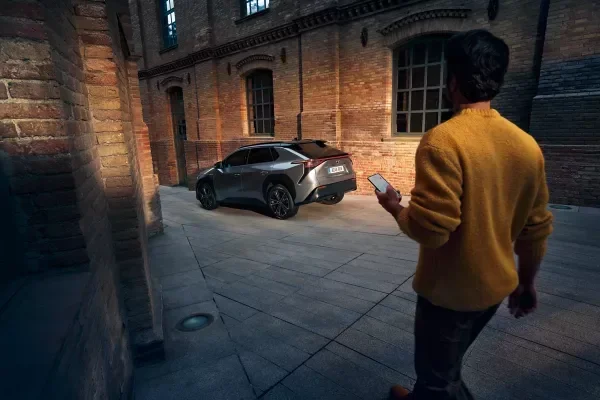
How Do I Add a Used Toyota to the Toyota App Guide
Adding a used Toyota to the Toyota App is simple and takes just a few minutes. You will need your vehicle identification number, a Toyota account, and your key fob ready. This guide walks you through every step from account creation to syncing remote features. Once your car is linked, you can access Toyota Connected services, track maintenance, and control certain vehicle functions right from your phone.
So you just bought a used Toyota. Great choice. Toyota makes some of the most reliable cars on the road, and the Toyota App makes ownership even better. But here is the question most new owners ask: how do I add a used Toyota to the Toyota App?
The good news is that the process is straightforward. Whether your Toyota is a few months old or several years old, you can connect it to the app in just a few steps. This guide covers everything from creating your account to syncing your key fob and unlocking remote features. By the end, you will know exactly what to do and why each step matters.
The Toyota App is more than just a dashboard on your phone. It gives you access to real-time vehicle status, maintenance reminders, and even remote start capabilities. When you add a used Toyota to the app, you bring all of these features into your daily routine. It is one of the best ways to stay on top of your car’s health and get the most out of your ownership experience.
Key Takeaways
- Create a Toyota account first: You need a valid Toyota login before adding any vehicle to the app.
- Have your VIN ready: The vehicle identification number is required to register a used Toyota properly.
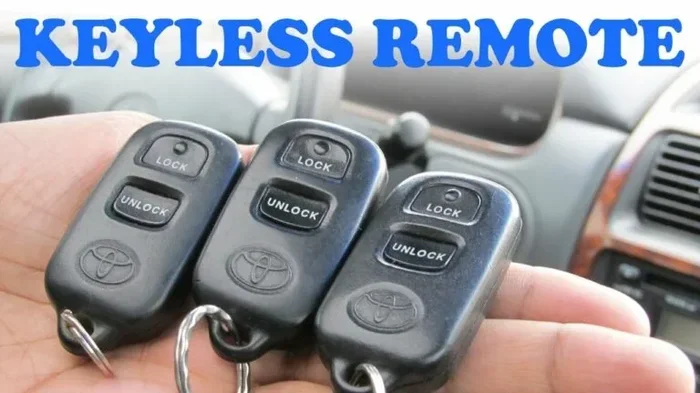
- Sync your key fob: Pairing your key fob unlocks remote features like lock, unlock, and engine start.
- Check for software updates: A used Toyota may need a firmware update before full app compatibility.
- Two people can share one Toyota App account: You can link a second user to the same vehicle.
- Visit a Toyota dealer if stuck: Dealerships can help with pairing issues and warranty service.
📑 Table of Contents
- What Is the Toyota App and Why Should You Add Your Used Toyota?
- How to Create a Toyota App Account
- Step-by-Step: Adding a Used Toyota to the Toyota App
- Setting Up Vehicle Features and Remote Services
- Common Issues When Adding a Used Toyota to the App
- Tips for Getting the Most From the Toyota App
- Frequently Asked Questions
- Conclusion
What Is the Toyota App and Why Should You Add Your Used Toyota?
The Toyota App is a mobile platform that connects your phone to your vehicle. It works with most Toyota models and gives you access to a range of services. These services are part of the Toyota Connected ecosystem. Once you add a used Toyota to the app, you can do things like check your fuel level, lock your doors, and schedule service appointments.
But why does this matter for a used car? When you buy a used Toyota, the previous owner may have already set up the app. Or they may not have. Either way, you need to register the vehicle under your name. This ensures that all notifications, alerts, and features are tied to your account. It also protects your privacy and security.
Here are some key reasons to add your used Toyota to the app:
- Remote vehicle control: Lock, unlock, and start your car from your phone.
- Maintenance tracking: Get alerts for oil changes, tire rotations, and other service needs.
- Vehicle health reports: Monitor your Toyota’s performance in real time.
- Roadside assistance: Access Toyota service and support quickly.
- Multi-user access: You can share the app with another trusted driver.
Each of these features works best when the vehicle is properly registered. So let us walk through the setup process step by step.
How to Create a Toyota App Account
Before you can add a used Toyota, you need a Toyota account. Think of this as your gateway to all Toyota services. The account is free to create, and it only takes a couple of minutes.
Step 1: Download the Toyota App
Go to the Apple App Store or Google Play Store. Search for “Toyota App” and download the official application. Make sure you are downloading the correct app from Toyota Motor Corporation. There are many copycat apps out there, so always check the developer name.
Step 2: Sign Up for an Account
Open the app and tap on “Create Account.” You will need a valid email address and a phone number. Choose a strong password that you can remember. The app will send a verification code to your email or phone. Enter that code to confirm your account.
Step 3: Log In and Explore
Once your account is verified, log in. Take a moment to explore the dashboard. You will see options like “Add Vehicle,” “Service,” and “Settings.” This is where you will spend most of your time. The interface is clean and easy to navigate, even if you are not very tech-savvy.
Now that you have an account, you are ready to add your used Toyota. This is the most important part of the process.
Step-by-Step: Adding a Used Toyota to the Toyota App
Adding a used Toyota to the app is not complicated, but there are a few things you need to have ready. Let us go through each step carefully.
Step 1: Gather Your Vehicle Information
You will need your vehicle identification number, commonly known as the VIN. You can find this in several places:
- On the driver’s side dashboard, visible through the windshield.
- On the driver’s side door jamb sticker.
- On your Toyota title or registration documents.
- On your previous insurance card.
Write down the VIN and keep it handy. You will enter it during the registration process. The VIN is a unique 17-character code that identifies your specific Toyota. The app uses this code to pull up your vehicle’s model, year, and factory specifications.
Step 2: Navigate to the Add Vehicle Section
Open the Toyota App and log in. Tap on the “Add Vehicle” button. This is usually located on the home screen or in the menu. The app will ask you to enter your VIN. Type it in carefully and double-check for errors.
After entering the VIN, the app will display your Toyota’s details. Confirm that the make, model, and year are correct. If anything looks off, you may need to verify the VIN or contact Toyota support.
Step 3: Pair Your Key Fob
This step is crucial for unlocking remote features. The Toyota App needs to communicate with your key fob to enable functions like remote start and door lock control.
To pair your key fob:
- Make sure your Toyota is within Bluetooth range of your phone.
- Go to the “Key Fob” or “Remote Services” section in the app.
- Follow the on-screen prompts to initiate pairing.
- Press the buttons on your key fob when prompted.
- Wait for the confirmation message that pairing is complete.
Once paired, you can use the app to control your Toyota remotely. This is one of the most satisfying parts of the setup process.
Step 4: Set Up Your Vehicle Profile
The app will ask you to create a vehicle profile. This includes details like your preferred language, notification settings, and service reminders. Take a few minutes to customize these settings. They make the app much more useful in day-to-day driving.
You can also set up maintenance reminders. The app will alert you when it is time for an oil change, tire rotation, or other routine service. This helps you stay on top of Toyota maintenance without having to remember every interval.
Setting Up Vehicle Features and Remote Services
Once your used Toyota is added to the app, you can start exploring its features. The Toyota App offers a range of connected services that enhance your driving experience.
Remote Start and Climate Control
One of the most popular features is remote start. You can start your Toyota’s engine from your phone, even before you get in the car. This is especially useful in cold weather or hot summer days. You can also control the climate system remotely to pre-heat or pre-cool the interior.
To use remote start, make sure your key fob is paired and your vehicle is within range. The app will guide you through the process the first time you use it. After that, it becomes second nature.
Lock and Unlock Doors
You can lock and unlock your Toyota’s doors using the app. This is handy if you forget to lock up or if you need to let someone into your car remotely. The app sends a signal to your vehicle, and the doors respond instantly.
Some Toyota models also support keyless entry through the app. This means you do not even need the physical key fob to get in. You can use your phone as your digital key.
Vehicle Location and Tracking
The Toyota App can show you where your car is parked. This is a great feature if you forget where you left your Toyota in a large parking lot. The location tracking uses GPS data from your vehicle, so it is always accurate.
Sharing Access With Another Driver
If you share your Toyota with a family member or trusted friend, you can add them to the app. Can two people use the Toyota App for one car? Yes, they can. The app allows you to invite another user and grant them access to specific features. This is perfect for couples or families who share a vehicle.
To add a second user, go to the app settings and look for the “Share Vehicle” option. Enter their email address, and they will receive an invitation to link their account to your Toyota.
Common Issues When Adding a Used Toyota to the App
While the process is generally smooth, you may run into a few hiccups along the way. Here are some common issues and how to fix them.
VIN Not Recognized by the App
If the app does not recognize your VIN, double-check that you entered it correctly. VINs can be tricky because they contain both letters and numbers that look similar, like the letter “O” and the number “0.” If the VIN is correct and still not working, contact Toyota support for help.
Key Fob Pairing Fails
Sometimes the key fob will not pair with the app. This can happen if the fob battery is low. Try replacing the battery in your key fob and attempt pairing again. Also, make sure your phone’s Bluetooth is turned on and that your Toyota is within close range.
App Crashes or Freezes During Setup
If the app crashes during setup, try closing it completely and reopening it. Make sure you have the latest version of the app installed. You can check for updates in the App Store or Google Play Store. Restarting your phone can also help resolve temporary glitches.
Remote Features Not Working After Setup
If you have completed setup but remote features are not working, your vehicle may need a software update. Used Toyotas sometimes have outdated firmware. You can check for updates in the app settings or visit a Toyota dealer for assistance. A dealer can also help if you are wondering whether you can take your Toyota to any dealership for warranty work after a recent purchase.
Tips for Getting the Most From the Toyota App
Now that your used Toyota is connected to the app, here are some tips to help you get the most out of it.
Keep Your App Updated
Toyota regularly releases app updates that add new features and fix bugs. Make sure you enable automatic updates so you always have the latest version. Updated apps work better and are more secure.
Enable Notifications
Turn on push notifications for maintenance reminders, service alerts, and security notifications. These alerts keep you informed about your Toyota’s condition and help you avoid unexpected problems.
Use the App to Schedule Service
You can book service appointments directly through the Toyota App. This saves you time and ensures that your Toyota gets the care it needs. The app can also show you service history and recall information for your specific vehicle.
Explore Toyota Smart Key Features
If your Toyota supports Smart Key, take time to explore all the features. You may be able to start the engine without removing the key fob from your pocket. Some models also allow you to open the trunk hands-free. These small conveniences add up over time.
Check Your Car Connectivity Regularly
Make sure your Toyota’s built-in connectivity is active. Some used vehicles may have the connectivity hardware but need to be activated. You can do this through the app or by visiting a Toyota dealer. Once activated, you will have access to all connected services.
Can You Drive a Toyota Without the Key Fob?
If you are wondering whether you can still drive your Toyota if your key fob battery dies or you lose it, the answer is yes in most cases. Toyota vehicles with Smart Key allow you to start the engine by placing the fob near the start button. However, having the fob connected to the app gives you even more flexibility and control over your vehicle.
Can You Roll Down Toyota Windows With the Key Fob?
Some Toyota models allow you to roll down windows using the key fob by pressing and holding the unlock button. This feature is separate from the app but works hand in hand with your Toyota’s remote capabilities. Check your owner’s manual to see if your model supports this function.
Frequently Asked Questions
Can I Add a Used Toyota to the Toyota App if the Previous Owner Had It Set Up?
Yes, you can. However, you will need to reset the vehicle’s app settings and register it under your own Toyota account. The previous owner should remove the vehicle from their account before you add it. This ensures that all notifications and remote access are tied to your account and not the previous owner’s.
Do I Need to Visit a Toyota Dealer to Add My Used Toyota to the App?
No, you do not need to visit a dealer for the basic setup. You can add your vehicle yourself through the app using your VIN and key fob. However, if you run into pairing issues or need a software update, a Toyota dealer can help you complete the process quickly and efficiently.
Is the Toyota App Free to Use?
The Toyota App is free to download and set up. Some premium features may require a subscription, such as certain remote start packages or extended connected services. Check the app for details on any subscription plans that may apply to your specific Toyota model.
What If My Used Toyota Does Not Have Toyota Connected?
Not all Toyota models come with Toyota Connected features. Older used Toyotas may not have the hardware needed for app connectivity. You can check your vehicle’s compatibility by entering your VIN in the app or contacting Toyota customer support. If your car is not compatible, you can still use basic features like service scheduling and maintenance reminders.
How Long Does It Take to Add a Used Toyota to the Toyota App?
The entire process usually takes about 10 to 15 minutes. Creating the account takes a few minutes, entering the VIN is quick, and pairing the key fob takes just a couple of minutes. If you need to visit a dealer for a software update or activation, it may take a bit longer.
Can I Add a Used Toyota to the App Before I Complete the Purchase?
Ideally, you should add the vehicle to the app after you have officially purchased it and the title is in your name. However, you can create a Toyota account and download the app before buying. Once the sale is complete and you have the VIN, you can immediately add the vehicle to your new account.
Conclusion
Adding a used Toyota to the Toyota App is one of the best things you can do after purchasing your vehicle. It gives you access to a powerful set of tools that make Toyota ownership more convenient, safer, and more enjoyable. From remote start to maintenance reminders, the app keeps you connected to your car every day.
The process is simple: create your Toyota account, enter your VIN, pair your key fob, and customize your settings. If you run into any issues, a Toyota dealer can help you get everything working smoothly. And remember, you can share access with another driver, making the app even more useful for families and couples.
Take a few minutes today to add your used Toyota to the app. You will wonder how you ever managed without it. The Toyota App is designed to make your life easier, and once it is set up, you will wonder how you ever drove without it.