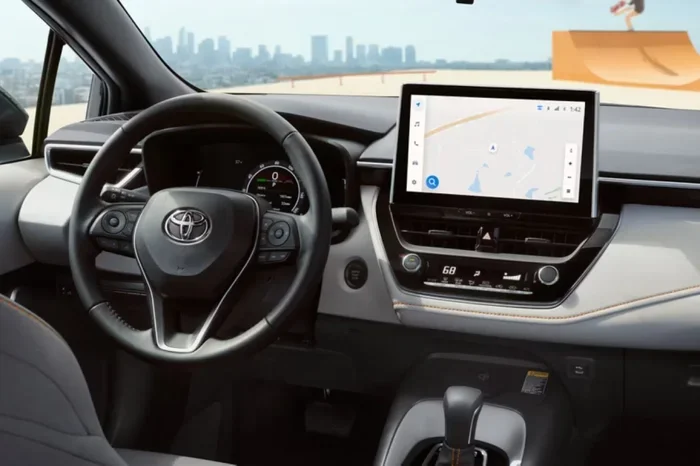
How Do I Connect My Phone to Toyota Corolla Navigation
Connecting your phone to your Toyota Corolla navigation system is simple once you know the right steps. Whether you use Apple CarPlay, Android Auto, or Bluetooth, this guide walks you through every method. You will learn how to pair your phone, stream music, use hands-free calling, and get directions without taking your eyes off the road.
Your Toyota Corolla comes with a navigation and infotainment system that works hand in hand with your smartphone. But figuring out how to make them talk to each other can feel confusing at first. You are not alone if you have ever sat in your driveway trying to figure out why your phone will not connect.
This guide breaks down every way you can link your phone to your Toyota Corolla navigation. We cover Bluetooth pairing, USB connections, wireless streaming, and everything in between. By the end, you will know exactly what to do and how to fix the most common problems.
The Toyota Corolla navigation system supports several connection types. Your exact options depend on your model year and trim level. Newer models from 2019 onward tend to have the most modern tech. Older models may rely more on Bluetooth and basic USB input.
Before you start, make sure your phone is updated. Both your phone and your car’s infotainment system need the latest software for the best experience. A quick restart of both devices before pairing can also save you a lot of headaches.
Key Takeaways
- Multiple Connection Methods: You can connect via Bluetooth, USB cable, or wireless Apple CarPlay and Android Auto depending on your model year.
- Bluetooth is the Most Common: Most Toyota Corolla models support Bluetooth pairing for calls, music, and basic navigation.
- USB Offers the Best Stability: A USB connection gives you faster data transfer and more reliable screen mirroring.
- Wireless Options Exist on Newer Models: Recent Toyota Corolla models support wireless smartphone integration without cables.
- Troubleshooting Is Straightforward: Most connection issues can be fixed by resetting Bluetooth, updating software, or checking cable quality.
- Safety First: Always set up your connection before driving to avoid distractions on the road.
📑 Table of Contents
- Understanding Your Toyota Corolla Infotainment System
- How to Connect Your Phone via Bluetooth
- How to Connect via USB Cable
- Wireless Apple CarPlay and Android Auto
- Using Navigation Apps After Connection
- Troubleshooting Common Connection Issues
- Tips for the Best Phone-to-Car Experience
- Comparison: Connection Methods at a Glance
- Final Thoughts
Understanding Your Toyota Corolla Infotainment System
The Toyota Corolla uses different infotainment systems depending on the year. Each system handles phone connections a little differently. Knowing which system you have helps you pick the right method.
Toyota Entune System
Older Toyota Corolla models use the Entune system. This system relies mostly on Bluetooth for phone connections. You can make calls and stream basic audio through Entune. The navigation features are more limited compared to newer systems. Toyota Entune does not support Apple CarPlay or Android Auto on most versions.
Toyota Audio Plus and Multimedia Systems
Mid-range Corolla trims often come with Audio Plus or similar multimedia setups. These systems support both Bluetooth and USB connections. Many of them also offer Apple CarPlay and Android Auto compatibility. The touchscreen is usually larger and more responsive on these systems.
Latest Generation Infotainment
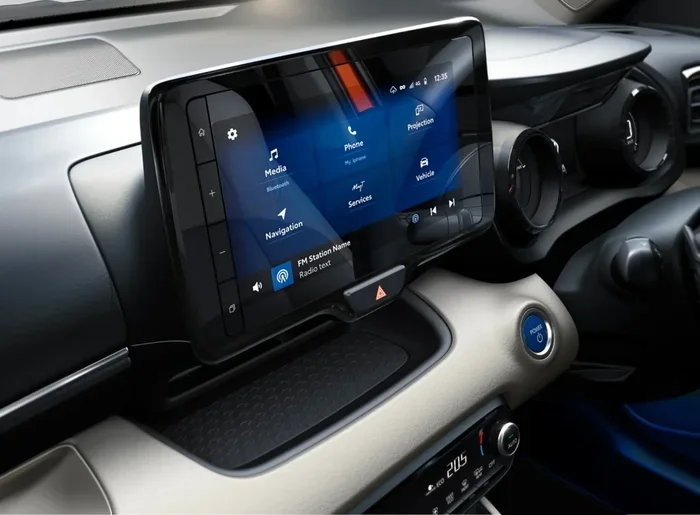
The newest Toyota Corolla models feature a modern infotainment platform. These systems support wireless smartphone integration in many cases. You can mirror your phone screen, use voice commands, and access navigation apps directly. The Toyota multimedia system in recent models is fast and intuitive.
How to Connect Your Phone via Bluetooth
Bluetooth is the most popular way to connect a phone to a Toyota Corolla. It works for calls, music streaming, and basic navigation prompts. Almost every Toyota Corolla ever made supports Bluetooth in some form.
Step-by-Step Bluetooth Pairing
Follow these steps to pair your phone with your Corolla’s system:
- Turn on your Toyota Corolla and press the Settings button on the infotainment screen.
- Select Bluetooth from the menu.
- Choose Add Device or Pair New Device.
- Go to your phone’s Bluetooth settings and turn Bluetooth on.
- Select your Toyota Corolla from the list of available devices.
- Enter the PIN if prompted. The default PIN is usually 0000 or 1234.
- Wait for the connection to confirm on both screens.
Once paired, your Corolla will automatically connect when you get in the car. This is called automatic reconnection and it works reliably most of the time.
What Bluetooth Can Do
Bluetooth gives you a lot of useful features:
- Hands-free calling so you can keep your hands on the wheel.
- Music streaming from Spotify, Pandora, or Apple Music.
- Contact sharing so your car shows names for incoming calls.
- Voice command access to make calls or play music without touching your phone.
- Basic navigation prompts if you use your phone’s GPS app.
Keep in mind that Bluetooth does not mirror your full phone screen. You get audio and call functions but not the full visual experience of apps like Google Maps on the car display.
How to Connect via USB Cable
A USB connection gives you a more stable and faster link between your phone and your Corolla. Many drivers prefer USB for navigation because it delivers a stronger signal and charges your phone at the same time.
Setting Up a USB Connection
Here is how to connect your phone using a USB cable:
- Locate the USB port in your Toyota Corolla. It is usually in the center console or under the armrest.
- Use a high-quality USB cable. A cheap or damaged cable causes many connection problems.
- Plug one end into your phone and the other into the car’s USB port.
- Your infotainment screen should detect the device automatically.
- Select the USB or Media option on your car’s display.
- Allow access if your phone asks for permission to share data.
If you have an Apple CarPlay or Android Auto compatible Corolla, the USB cable will launch the mirroring app automatically. You will see your phone’s interface on the car screen within seconds.
Benefits of USB Over Bluetooth
USB has several advantages:
- Faster data transfer for smoother app performance.
- Charges your phone while you drive.
- More stable connection with fewer dropouts.
- Full screen mirroring for navigation apps.
- Better audio quality for music streaming.
The downside is that you need to keep a cable in your car. Some people find cables messy or easy to forget. But for reliability, USB is hard to beat.
Wireless Apple CarPlay and Android Auto
If you have a newer Toyota Corolla, you may be able to go completely wireless. Wireless Apple CarPlay and Android Auto let you mirror your phone without any cables at all.
How Wireless Connection Works
Wireless connection uses Wi-Fi to link your phone to the car’s system. The car creates a local network that your phone joins. Once connected, everything works just like a USB connection but without the cord.
To use wireless smartphone integration, both your phone and car must support it. Check your Corolla’s manual or look up your specific model year online. Most 2022 and newer Corolla models offer this feature.
Setting Up Wireless CarPlay or Android Auto
The setup process is straightforward:
- Make sure Bluetooth and Wi-Fi are turned on in your phone settings.
- Go to your car’s infotainment settings and select Wireless Apple CarPlay or Wireless Android Auto.
- Your phone should detect the car’s Wi-Fi network.
- Tap connect on your phone.
- Accept any permissions that pop up on either screen.
- Your phone screen should now mirror on the car display.
Wireless connections are convenient but can sometimes be slower than USB. If you experience lag, try switching to USB for a more stable experience.
Using Navigation Apps After Connection
Once your phone is connected, you can use your favorite navigation apps on the big car screen. This is one of the best reasons to connect your phone to your Corolla.
Google Maps
Google Maps works great through both Apple CarPlay and Android Auto. You get turn-by-turn directions, traffic updates, and voice guidance. The car’s speakers play the navigation prompts clearly. You can also search for restaurants, gas stations, and other points of interest right from the touchscreen.
Apple Maps
If you use an iPhone, Apple Maps is built right into CarPlay. It offers smooth navigation with clean visuals. Apple Maps also integrates with Siri so you can set destinations with your voice.
Waze and Other Apps
Waze is another popular choice for Toyota Corolla navigation. It focuses on real-time traffic and community reports. You can also use Spotify, YouTube Music, or Audible through CarPlay and Android Auto for a full multimedia experience.
Some drivers also ask whether they can change the voice on Toyota navigation for a more personalized experience. The answer is yes, and it is easy to do through the settings menu.
Troubleshooting Common Connection Issues
Even with the simplest setup, things can go wrong. Here are the most common problems and how to fix them.
Phone Will Not Pair with the Car
If your phone will not pair, try these steps:
- Turn Bluetooth off and back on in your phone settings.
- Delete the old Corolla connection from your phone’s Bluetooth list.
- Restart both your phone and the car’s infotainment system.
- Make sure your phone is not connected to another device.
- Try a different USB cable if you are using a wired connection.
Connection Drops Frequently
Intermittent connections are frustrating. This often happens because of:
- A low battery on your phone.
- Software that is out of date on either device.
- Too many devices trying to connect to the car’s Bluetooth.
- A weak USB cable or dirty port.
Updating both your phone and your car’s software often solves this problem. You can check for car software updates at your local Toyota dealership.
No Sound or Audio Issues
If you can see your phone on the screen but hear no sound:
- Check that the media volume is turned up on both your phone and car.
- Make sure the correct audio source is selected on the car display.
- Disconnect and reconnect the Bluetooth device.
- Try a different USB port if you are using a cable.
Tips for the Best Phone-to-Car Experience
Getting your phone connected is only half the battle. A few smart habits make the experience much better.
- Use a short, high-quality USB cable. Long or cheap cables cause signal loss.
- Clean your USB ports regularly. Dust and debris build up over time and cause connection issues.
- Set up your connection before you start driving. Safety always comes first.
- Keep your phone mounted in a good spot. A dash mount or vent mount keeps your screen visible without blocking your view.
- Use voice commands when possible. This keeps your eyes on the road and hands on the wheel.
Many drivers also want to know if they can start their Toyota with their phone. While this depends on your specific model, the same connectivity principles apply across Toyota vehicles.
Comparison: Connection Methods at a Glance
| Feature | Bluetooth | USB Cable | Wireless CarPlay/Auto |
|---|---|---|---|
| Ease of Setup | Very Easy | Easy | Easy |
| Stability | Good | Excellent | Good |
| Screen Mirroring | No | Yes | Yes |
| Phone Charging | No | Yes | No |
| Audio Quality | Good | Excellent | Good |
| Cables Needed | None | Yes | None |
| Works on All Models | Yes | Most Models | Newer Models |
As you can see, each method has its strengths. Bluetooth wins for simplicity. USB wins for reliability. Wireless CarPlay and Android Auto win for convenience on newer models.
Final Thoughts
Connecting your phone to your Toyota Corolla navigation system opens up a world of convenience. You get real-time directions, hands-free calling, and your favorite music all in one place. The process is simpler than most people think, and once it is set up, you will wonder how you ever drove without it.
Start with Bluetooth if you want the quickest setup. Switch to USB or wireless CarPlay if you want the full experience. And remember to keep your software updated for the smoothest performance.
Whether you drive a 2012 Corolla or a brand new 2024 model, there is a way to get your phone connected. Follow the steps in this guide and you will be navigating with confidence in no time.
For more Toyota tips and tricks, check out our other guides on driving your Toyota without the key fob and other helpful topics.