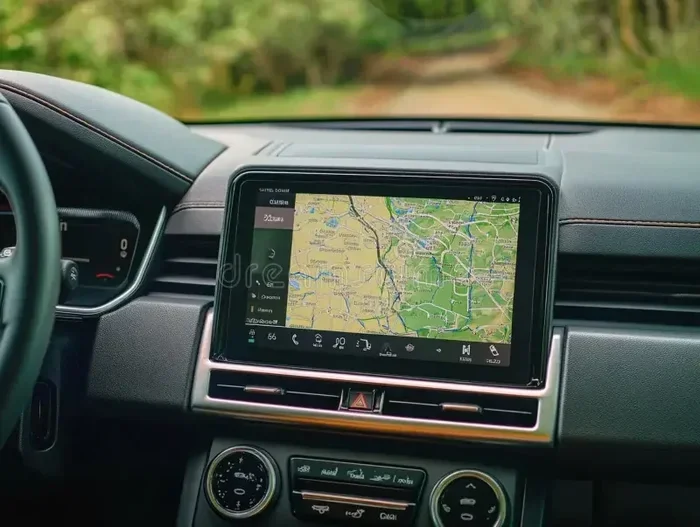
How Do I Enable Apple CarPlay on My iPhone and Car
Apple CarPlay lets you safely access your favorite apps, maps, and music right on your car’s dashboard screen. Enabling it is simple, whether you use a USB cable or go wireless. In this guide, we walk you through every step to get CarPlay up and running fast. You will learn about settings, compatible cars, and common fixes too. Read on and start using Apple CarPlay today.
If you have an iPhone and a modern car, you have probably heard about Apple CarPlay. It is one of the best ways to stay connected while driving safely. But many people are not sure how to actually turn it on. The good news? Enabling CarPlay is easier than you think.
In this guide, we will show you exactly how to enable Apple CarPlay on your iPhone and your car. We will cover every method, fix common problems, and share tips you will not find in the manual. Whether you are new to CarPlay or trying to get it working after a recent update, this article has you covered.
Let us start with the basics. Apple CarPlay is a feature that mirrors certain apps from your iPhone onto your car’s infotainment screen. You get access to maps, music, messages, and phone calls without picking up your phone. It works with Siri voice commands, so you can keep your hands where they belong. Now let us dive into how to set it all up.
Key Takeaways
- Easy Setup: Enabling Apple CarPlay takes just a few minutes with a cable or wirelessly.
- Wide Compatibility: Most cars made after 2016 support CarPlay or offer it as an upgrade.
- Two Connection Types: You can choose between a wired USB connection or a wireless Bluetooth/Wi-Fi link.
- Troubleshooting Is Simple: Most issues can be fixed with a quick restart or iOS update.
- Safety First: CarPlay keeps your hands on the wheel and eyes on the road with Siri voice commands.
- Customizable Experience: You can choose which apps appear and rearrange them to suit your driving habits.
📑 Table of Contents
- What Is Apple CarPlay and Why Should You Use It?
- How to Enable Apple CarPlay on Your iPhone
- How to Connect Apple CarPlay to Your Car
- Which Cars Support Apple CarPlay?
- Troubleshooting Common Apple CarPlay Issues
- Tips to Get the Most Out of Apple CarPlay
- Common Mistakes People Make with Apple CarPlay
- Final Thoughts on Enabling Apple CarPlay
What Is Apple CarPlay and Why Should You Use It?
Apple CarPlay is a smart driving feature built into iOS. It connects your iPhone to your car’s display. Once connected, you can use navigation, make calls, send messages, and listen to music. All of this happens through your car’s screen and controls.
The main goal of CarPlay is driving safety. It reduces distractions by keeping your phone tucked away. Instead of holding your iPhone, you use your car’s touchscreen or steering wheel buttons. Siri voice commands let you dictate texts and make calls hands-free. This is a huge win for driving safety.
Here are some of the top benefits of using Apple CarPlay:
- Hands-free calling and messaging so you stay focused on the road
- Real-time navigation with apps like Google Maps, Waze, and Apple Maps
- Music and podcast streaming from Spotify, Apple Music, and other apps
- Voice control through Siri for almost every function
- Clean dashboard display with a simple, easy-to-read interface
- Minimal distraction compared to using your phone directly
If your car supports CarPlay, you are missing out if you have not tried it yet. Let us now look at how to actually turn it on.
How to Enable Apple CarPlay on Your iPhone
Before you connect your phone to your car, you need to make sure CarPlay is turned on in your iPhone settings. This step is quick and only takes a minute. Follow along below.
Step 1: Check Your iPhone Settings
First, open the Settings app on your iPhone. Scroll down and tap on General. Then look for CarPlay. If you do not see it, make sure your iPhone is running the latest iOS version. Apple CarPlay requires iOS 7 or later, but newer versions work much better.
Once you tap on CarPlay, you will see a list of available vehicles. Your car should appear here once it is connected. If it does not, do not worry. We will fix that in the next section.
Step 2: Enable CarPlay in Control Center
You can also access CarPlay quickly through Control Center. Swipe down from the top-right corner of your screen. Look for the CarPlay icon. Tap it, and your iPhone will start searching for a compatible car or accessory.
This method is great if you want to toggle CarPlay on and off fast. You can add the CarPlay button to Control Center if it is not there already. Just go to Settings, then Control Center, and add the CarPlay shortcut.
Step 3: Allow CarPlay Connections
When you first connect your iPhone to your car, you will see a prompt. It will ask if you trust this car. Tap Trust to allow the connection. If you accidentally tapped Don’t Allow, you can fix this. Just go to Settings, then General, then CarPlay, and choose your car again.
This permission step is important for iPhone connection stability. Without it, your car may not recognize your phone. Always make sure you tap Trust when the prompt appears.
How to Connect Apple CarPlay to Your Car
Now that CarPlay is enabled on your iPhone, it is time to connect it to your car. There are two main ways to do this. You can use a cable or go wireless. Let us look at both methods in detail.
Method 1: Wired Connection with a USB Cable
The most common way to use Apple CarPlay is with a USB cable. Plug one end into your iPhone and the other into your car’s USB port. Many cars have a port labeled with a CarPlay or smartphone symbol.
Once plugged in, your car screen should display CarPlay automatically. If nothing happens, try a different USB port. Some ports only charge your phone and do not support data transfer. Use the port that supports audio and data.
Here are some quick tips for wired CarPlay connections:
- Use the original Apple Lightning cable or a certified CarPlay USB cable
- Avoid long extension cables. They can weaken the signal
- Clean your iPhone’s charging port. Dust can block the connection
- Try a different USB port in your car if the first one does not work
- Unlock your iPhone before plugging it in for a smoother connection
Method 2: Wireless CarPlay Connection
Many newer cars support wireless CarPlay. This means no cables at all. Your phone connects through Bluetooth and Wi-Fi. It is super convenient and feels almost magical.
To use wireless CarPlay, your car must support it. Not all cars do, even if they have CarPlay in general. Check your car’s manual or the manufacturer’s website. You can also look for a wireless CarPlay icon on your infotainment screen.
For wireless CarPlay to work, both your car and iPhone need to be on the same Wi-Fi network or connected via Bluetooth. The first time you pair them, you may need a USB cable. After that, the connection should happen automatically every time you get in the car.
Here is how to check if your car supports wireless CarPlay:
- Look for a wireless CarPlay option in your car’s settings
- Check your car manufacturer’s website for your specific model
- Search online for your car model and year plus “wireless CarPlay”
- Ask your dealer if your car supports wireless CarPlay
Wired vs Wireless CarPlay: Which Should You Choose?
Both connection types have their pros and cons. Let us compare them so you can decide which works best for you.
| Feature | Wired CarPlay | Wireless CarPlay |
|---|---|---|
| Connection method | USB cable | Bluetooth and Wi-Fi |
| Setup speed | Fast, plug and play | Automatic after first pairing |
| Cable needed | Yes | No |
| Availability | Almost all CarPlay cars | Newer models mostly |
| Reliability | Very stable | Depends on Wi-Fi signal |
| Convenience | Moderate | Very high |
| Charging during use | Yes | No (unless separate charger) |
Most people find wireless CarPlay more convenient. But wired connections are more reliable. If you have an older car, a wired connection is your best bet. If you have a newer car, wireless is the way to go.
Which Cars Support Apple CarPlay?
One of the most common questions people ask is about CarPlay compatible car models. The good news is that CarPlay has become very popular. Most car manufacturers now offer it, at least in higher trim levels.
Here are some of the most popular CarPlay supported vehicles:
- Toyota – Many models from 2016 onward support CarPlay
- Honda – Civic, Accord, CR-V, and most newer models
- Ford – SYNC 3 and newer systems support CarPlay
- Chevrolet – Most models from 2016 and newer
- BMW – Many models from 2017 onward
- Hyundai – Most models from 2017 onward
- Tesla – Does not natively support CarPlay (but works with some adapters)
- Nissan – Many models with the infotainment upgrade
If you are not sure about your specific car, check the manufacturer’s website or ask your dealer. You can also look for the CarPlay logo on your car’s infotainment screen. That logo means your car is ready for Apple CarPlay.
For older cars without built-in CarPlay, there is hope. You can buy an aftermarket CarPlay adapter. These devices plug into your car’s system and add CarPlay support. Brands like Pioneer, Kenwood, and Alpine make great options. They range in price from about $100 to $400.
Troubleshooting Common Apple CarPlay Issues
Sometimes CarPlay does not work the way it should. This can be frustrating, but most problems have simple fixes. Let us walk through the most common issues and how to solve them.
CarPlay Is Not Showing Up on My Car Screen
If your car screen does not display CarPlay after connecting, try these steps:
- Make sure your iPhone is unlocked and on the home screen
- Try a different USB cable or port
- Restart your iPhone
- Restart your car’s infotainment system
- Make sure CarPlay is enabled in your iPhone settings
- Check that your car supports CarPlay for your specific model
Sometimes the simplest fix works best. A quick restart of both your iPhone and car screen can solve the problem. Just turn off the car, restart your phone, and try again.
CarPlay Keeps Disconnecting
If your CarPlay connection drops frequently, it could be a cable or software issue. Here is what to check:
- Inspect your USB cable for damage. Frayed cables cause disconnections
- Update your iPhone to the latest iOS version
- Update your car’s infotainment software if possible
- Remove other connected devices that might interfere
- For wireless CarPlay, make sure your Wi-Fi signal is strong
- Forget the car in CarPlay settings and reconnect from scratch
Frequent disconnections are often caused by a faulty cable. Always use a high-quality, certified cable for the best iPhone connection experience.
CarPlay Works but Apps Are Missing
Not all apps work with CarPlay. Apple has a list of supported apps for navigation, music, messaging, and podcasts. If an app is missing, check the App Store to see if it has a CarPlay version.
You can also customize which apps show up in CarPlay. Go to Settings, then General, then CarPlay. Select your car and tap Customize. From there, you can add or remove apps as you like.
Tips to Get the Most Out of Apple CarPlay
Now that you have CarPlay working, let us make sure you are getting the best experience. Here are some expert tips that will level up your CarPlay game.
Use Siri for Everything
Siri voice commands are the heart of Apple CarPlay. You can say “Hey Siri” to make calls, send texts, play music, or get directions. This keeps your eyes on the road and hands on the wheel. It is the safest way to use your phone while driving.
Try these Siri commands while driving:
- “Hey Siri, navigate to the nearest gas station”
- “Hey Siri, play my workout playlist”
- “Hey Siri, call Mom”
- “Hey Siri, what is my next appointment?”
- “Hey Siri, send a text to John saying I am on my way”
Keep Your iPhone Updated
Apple releases iOS updates regularly. These updates often include fixes for CarPlay bugs and improvements to performance. Always keep your iPhone updated for the best CarPlay experience.
Similarly, if your car supports software updates for the infotainment system, keep that updated too. Many CarPlay troubleshooting issues are resolved with the latest software on both devices.
Organize Your CarPlay Apps
You do not want a cluttered dashboard display. Take a few minutes to organize your CarPlay apps. Keep only the apps you actually use while driving. This makes the interface cleaner and faster.
You can rearrange apps by going into CarPlay settings on your iPhone. Tap and hold an app to move it. Put your most-used apps front and center for quick access.
Use a Quality Cable for Wired Connections
If you use a wired connection, invest in a good cable. Cheap cables can cause connection problems, slow data transfer, and even damage your phone’s port. Look for Apple-certified or MFi-certified cables. They are worth the small extra cost.
A good cable also supports faster charging. This means your phone stays powered up during long drives. That is a win-win for driving safety and convenience.
Explore New Apps
CarPlay supports a wide range of apps beyond the basics. Try new navigation apps like Waze for real-time traffic updates. Explore podcast apps like Pocket Casts or Overcast. You might discover new tools that make your drives more enjoyable and productive.
Common Mistakes People Make with Apple CarPlay
Even with a simple setup like CarPlay, people sometimes make avoidable mistakes. Here are the most common ones and how to prevent them.
- Using a non-certified cable: This can cause connection drops and slow performance. Always use MFi-certified cables.
- Ignoring software updates: Outdated iOS or car software causes many CarPlay issues. Keep everything updated.
- Not restarting before troubleshooting: A simple restart fixes more problems than people realize. Always try this first.
- Overloading CarPlay with apps: Too many apps make the interface slow. Keep only what you need.
- Forgetting to enable CarPlay in settings: Some people never check their iPhone settings. Always verify CarPlay is turned on.
- Using CarPlay while the phone is locked: Some features require the phone to be unlocked for security reasons.
Avoiding these mistakes will save you time and frustration. A little prevention goes a long way with CarPlay setup and daily use.
Final Thoughts on Enabling Apple CarPlay
There you have it. You now know everything you need about how to enable Apple CarPlay on your iPhone and car. From the initial CarPlay setup to troubleshooting and optimization, you are fully equipped.
Apple CarPlay is a game-changer for daily driving. It makes your drives safer, more connected, and more enjoyable. Whether you use the wired CarPlay cable connection or the convenient wireless option, the experience is smooth and intuitive.
Remember to keep your iPhone updated, use quality cables, and organize your apps for the best results. If you run into issues, the troubleshooting steps in this guide should help you get back on track quickly. CarPlay is designed to work seamlessly, and with the right setup, it truly does.
Now go ahead and enable Apple CarPlay on your car. You will wonder how you ever drove without it. Safe travels and enjoy the ride.
Frequently Asked Questions
Can I use Apple CarPlay if my car doesn’t have it built in?
Yes, you can. Many aftermarket car stereos and head units support Apple CarPlay. You can also buy a CarPlay adapter that plugs into your existing system. Check with your car manufacturer or an auto electronics shop for compatible options.
Do I need an internet connection to use Apple CarPlay?
Most CarPlay features work without internet. Maps can download offline routes, and you can play stored music. However, real-time traffic updates, streaming music, and Siri responses require a data connection. Wireless CarPlay uses your phone’s data plan.
Why is my Apple CarPlay not showing up on my car screen?
This is usually caused by a loose cable, outdated software, or CarPlay being disabled in settings. Try using a different USB cable, restart both devices, and make sure CarPlay is turned on in your iPhone settings. Most issues resolve with these simple steps.
Can I use Apple CarPlay with an Android phone?
No, Apple CarPlay only works with iPhones. Android phones use a competing feature called Android Auto. If you drive an Android phone, look into Android Auto for a similar experience on your car’s screen.
Does Apple CarPlay drain my iPhone battery?
It can use some battery, especially during long drives with navigation and music running. To minimize battery drain, connect a CarPlay USB cable that also charges your phone. You can also reduce screen brightness on the CarPlay display in your car settings.
Is Apple CarPlay safe to use while driving?
Yes, Apple CarPlay is designed with driving safety in mind. It limits distractions by using your car’s screen and steering wheel controls. Siri voice commands let you keep your eyes on the road. Always pull over if you need to make a complex change to settings.