Does the Toyota Dash Cam Come With an SD Card Included
Most Toyota models with a built-in dash cam do not come with an SD card included. You will typically need to purchase a compatible micro SD card separately to enable recording. The right card ensures your Toyota dash cam captures clear footage for safety and insurance purposes.
If you just bought a Toyota with a built-in dash cam, you might be wondering whether an SD card comes in the box. The short answer is most likely no. Toyota typically does not include a memory card with its factory-installed dash cam systems. But there is more to know about how this works, what card you need, and how to get everything running smoothly.
Having a dash cam in your Toyota gives you real peace of mind on the road. Whether you are dealing with a fender-bender in a parking lot or capturing a close call on the highway, dash cam footage can be a lifesaver. But none of that matters if the camera cannot record. That is where the SD card comes in.
In this guide, we will walk through everything you need to know about Toyota dash cam SD cards. We will cover which models include a camera, what type of card to buy, how to insert it, and a few common mistakes to avoid. By the end, you will know exactly what to do to get your Toyota dash cam up and running.
Key Takeaways
- No SD card included: Toyota generally does not bundle an SD card with its factory dash cam systems.
- Check your model: Not all Toyota vehicles come with a built-in dash cam — it depends on trim level and year.
- Use a high-quality micro SD card: Look for Class 10 or UHS-I rated cards with at least 32GB of storage.
- Setup is simple: Inserting and configuring the card takes just a few minutes inside the vehicle.
- Loop recording matters: Enable loop recording so your dash cam continuously overwrites old footage.
- Proper placement is key: Mount the camera correctly for the best field of view and video quality.
📑 Table of Contents
Does Every Toyota Come With a Built-In Dash Cam?
Before we talk about SD cards, it helps to understand whether your Toyota even has a dash cam. Not every Toyota vehicle comes with a factory-installed camera system. The availability depends on the model, trim level, and model year.
Toyota Models That Include a Dash Cam
Toyota has been slowly rolling out built-in dash cams across its lineup. Some models that may include a factory dash cam are:
- Toyota Camry — Certain trims, especially higher-end ones, offer a built-in camera system.
- Toyota Corolla — Some newer trims include a front camera as part of the Toyota Safety Sense package.
- Toyota RAV4 — Select trims feature camera systems tied to safety and driver-assist features.
- Toyota Avalon — Higher trims may include camera-based safety features.
- Toyota Crown — This model often comes with advanced camera systems as standard.
Keep in mind that a camera being part of a safety suite does not always mean it records video for you to review. Some Toyota cameras are designed purely for driver-assist functions like lane departure warning or pre-collision sensing. You will need to confirm whether your specific system supports dash cam recording.
How to Check if Your Toyota Has a Dash Cam
There are a few easy ways to find out if your Toyota has a dash cam:
- Check your owner’s manual for references to a camera or recording feature.
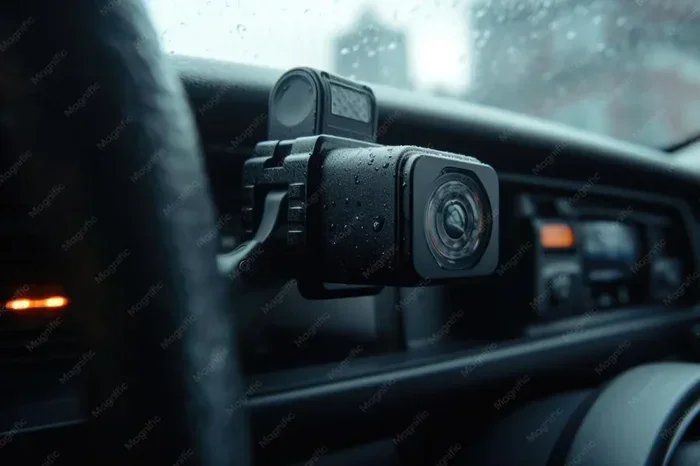
- Look at the top of your windshield near the rearview mirror for a small camera lens.
- Check the infotainment screen for a camera or safety recording option in the settings.
- Call your local Toyota dealer with your VIN number and ask directly.
If you are unsure about your Toyota safety features, the owner’s manual is always the best starting point. It will tell you exactly what your vehicle includes and how to use it.
Does the Toyota Dash Cam Come With an SD Card?
Here is the main question, and the answer is straightforward. In most cases, Toyota does not include an SD card with the dash cam system. The camera hardware may be installed at the factory, but you are responsible for providing the storage medium.
This is similar to how many electronics work. The manufacturer expects you to supply your own memory card. Toyota designs the system to be compatible with standard micro SD cards, which you can buy at most electronics stores or online.
Why Toyota Does Not Include an SD Card
There are a few reasons Toyota keeps the SD card out of the box:
- Cost savings: Bundling a card with every vehicle would add expense, and not every buyer uses the dash cam feature.
- Storage needs vary: Some drivers want 32GB, while others prefer 128GB or more. Toyota cannot guess the right size for everyone.
- Technology changes fast: SD card standards evolve, and including one specific card could become outdated quickly.
- Personal preference: Some drivers prefer a specific brand or speed rating for reliable performance.
While it might feel like a small inconvenience, this approach actually gives you more flexibility. You can choose the card that best fits your needs and budget.
What Kind of SD Card Does the Toyota Dash Cam Need?
Not all SD cards are created equal. Using the wrong type can lead to recording failures, corrupted files, or poor video quality. Here is what you need to know about choosing the right card for your Toyota dash cam.
Micro SD vs. Standard SD
Toyota dash cam systems use micro SD cards. These are the small, removable cards commonly used in smartphones and action cameras. They are easy to insert and remove, and they take up very little space inside the vehicle.
Do not try to use a full-size SD card. It will not fit in the camera slot. Always look for a micro SD card that meets the specifications outlined in your owner’s manual.
Recommended Storage Capacity
When it comes to storage size, bigger is generally better. Here is a quick comparison:
- 32GB: Enough for a few hours of recording. Good for short daily commutes.
- 64GB: A solid choice for most drivers. Gives you several days of continuous coverage.
- 128GB: Best for long road trips or drivers who want extended storage without frequent changes.
- 256GB: Overkill for most users, but great for fleet vehicles or heavy daily use.
Most experts recommend going with at least a 64GB micro SD card. This gives you a good balance between storage space and cost.
Speed Class Matters
Speed is just as important as storage size. A slow card can cause the camera to lag, drop frames, or fail to record during key moments. Look for these speed ratings:
- Class 10: Minimum recommended speed for dash cam recording. Handles 1080p video well.
- UHS-I (U1 or U3): Ultra High Speed rating. U3 is ideal for 4K or high-frame-rate recording.
- V30: Video speed class rating. Guarantees smooth, uninterrupted video capture.
Always choose a card rated for continuous writing. Dash cams write data constantly, and standard cards are not always built for that kind of use.
Recommended SD Card Brands for Toyota Dash Cams
Some brands are known for reliability in dash cam applications:
- SanDisk — A popular choice with consistent performance and wide availability.
- Samsung EVO Select — Offers great speed and durability at a reasonable price.
- Lexar — Known for high endurance cards designed for continuous recording.
- Kingston Canvas — A solid budget-friendly option that still delivers reliable performance.
Any of these brands will work well with your Toyota dash cam. Just make sure the card meets the speed and capacity requirements we discussed above.
How to Insert and Set Up the SD Card in Your Toyota
Once you have the right card, setting it up is quick and easy. Here is a step-by-step guide to get your Toyota dash cam recording.
Step-by-Step SD Card Installation
- Turn off your vehicle: Always power down the car before inserting or removing the SD card. This protects the camera and the card from damage.
- Locate the SD card slot: The slot is usually near the top of the windshield, close to the rearview mirror. It may be behind a small cover or panel.
- Remove the cover: Gently pop open or slide off the cover to expose the card slot.
- Insert the micro SD card: Align the card with the slot. The gold contacts should face down or inward, depending on your model. Push it in gently until it clicks.
- Replace the cover: Snap the cover back into place to protect the card from dust and debris.
- Power on the vehicle: Start the car and check the infotainment screen to confirm the card is recognized.
- Enable recording: Go into the camera or safety settings on your infotainment system and turn on dash cam recording.
That is it. In less than five minutes, your dash cam recording should be active and ready to go.
Configuring Recording Settings
Once the card is inserted, take a few minutes to configure the settings. Most Toyota systems let you adjust the following:
- Video resolution: Choose between 720p, 1080p, or 4K depending on your card’s storage capacity.
- Loop recording: Turn this on so the camera automatically overwrites old footage when the card is full.
- Event detection: Enable this feature so the camera saves clips automatically when it detects a collision or sudden movement.
- Parking mode: If your Toyota supports it, enable parking mode to record even when the engine is off.
These settings make a big difference in how useful your dash cam footage will be when you actually need it. Take the time to get them right.
Tips for Managing Your SD Card
A few simple habits will keep your video storage running smoothly:
- Format the card in your Toyota’s system every few months to prevent file errors.
- Replace the card every two to three years for optimal reliability.
- Back up important footage to your phone or computer after any significant event.
- Avoid removing the card while the camera is still writing data.
- Keep the card away from extreme heat and direct sunlight inside the vehicle.
Common Problems and How to Fix Them
Even with the right card, you may run into occasional issues. Here are the most common problems and their solutions.
SD Card Not Recognized
If your Toyota dash cam does not detect the card, try these steps:
- Remove the card and reinsert it firmly.
- Check for dust or debris in the card slot.
- Try a different micro SD card to rule out a defective card.
- Restart the vehicle and check the infotainment system.
- Format the card on your computer and reinsert it.
If none of these work, the camera module itself may need inspection. Visit your Toyota dealer for a professional check.
Recording Stops Suddenly
If your dash cam recording stops mid-drive, the card may be full or damaged. Switching to a higher-capacity or higher-endurance card usually fixes this issue. Also check that loop recording is turned on so the camera keeps writing without interruption.
Blurry or Poor-Quality Footage
Bad video quality is often caused by a slow or incompatible SD card. Upgrade to a Class 10 or UHS-I card and make sure the lens is clean. Dust on the camera lens can also reduce clarity significantly.
Why a Dash Cam Is Worth the Setup
You might wonder if all this effort is worth it. The answer is a strong yes. A working Toyota dash cam gives you an extra layer of protection every time you drive.
In the event of an accident, dash cam footage can settle disputes quickly. Insurance companies increasingly accept video evidence, and clear footage can speed up claims significantly. Beyond accidents, a dash cam can capture hit-and-runs, parking lot dings, and even unusual road events.
Some drivers also use their dash cam footage for personal memories — scenic drives, road trips, or even funny moments on the road. The possibilities go far beyond just insurance claims.
If you are already comfortable with Toyota technology, you may also enjoy features like Can I Unlock My Toyota With My Phone or setting up How To Set The Date And Time In Car Settings to keep your infotainment system running smoothly alongside your dash cam.
Final Thoughts
The Toyota dash cam is a valuable safety feature, but it needs the right SD card to function properly. Toyota does not include an SD card with the system, so you will need to purchase a compatible micro SD card on your own. Choose a card with at least 32GB of storage, a Class 10 or UHS-I speed rating, and a reputable brand for the best results.
Setting up the card is simple, and once it is in place, your dash cam will handle the rest automatically. With loop recording and event detection enabled, you can drive with confidence knowing that your journeys are being captured. Take a few minutes today to check your setup, and you will be glad you did when you need it most.
Whether you are a daily commuter or a long-distance traveler, a properly configured Toyota dash cam is one of the smartest investments you can make for your vehicle and your peace of mind.
Frequently Asked Questions
Do I need a special SD card for my Toyota dash cam?
No, you do not need a special card, but you should use a micro SD card with a Class 10 or UHS-I speed rating and at least 32GB of storage. Standard micro SD cards from brands like SanDisk or Samsung work great for Toyota dash cam recording.
Can I use any micro SD card in my Toyota dash cam?
You can use most micro SD cards, but for the best results, choose a card rated for continuous writing. Cards with a Class 10 or V30 rating ensure smooth, uninterrupted dash cam recording without dropped frames or errors.
How much storage do I need for dash cam footage?
A 64GB micro SD card is usually the sweet spot. It gives you several days of continuous recording. If you drive long distances frequently, a 128GB card provides even more coverage without needing to swap cards often.
Why is my Toyota dash cam not detecting the SD card?
This can happen if the card is not seated properly, is dirty, or is incompatible. Try removing and reinserting the card, checking for dust in the slot, or testing with a different card. If the problem persists, consult your Toyota owner’s manual or visit a dealer.
Should I leave the SD card in my Toyota dash cam all the time?
Yes, you can leave the card in permanently. Just remember to format it occasionally through your vehicle’s settings to prevent file buildup and keep the system running smoothly.
Can I use my Toyota dash cam to record while parked?
Yes, if your Toyota supports parking mode, the dash cam can continue recording even when the engine is off. Make sure your micro SD card has enough storage, as parking mode can fill up the card faster than normal driving.
=== CONCLUSION ===
To answer the question directly, Toyota does not include an SD card with its dash cam system. You will need to purchase a compatible micro SD card separately. The process is simple, the cost is low, and the payoff is enormous. With the right card in place, your Toyota dash cam becomes a reliable guardian on every drive, giving you clear footage when you need it most. Take the time today to get your setup right, and you will drive with confidence knowing you are fully covered.