How Do I Connect Apple CarPlay to My RAV4 Step by Step
Connecting Apple CarPlay to your RAV4 is simple and takes just a few minutes. Whether you have a wired or wireless setup, this guide walks you through every step. You will learn how to pair your iPhone, fix common issues, and get the most out of your RAV4 infotainment system.
You just got into your RAV4, and you want to see your favorite apps on the big screen. Maybe you want to use Google Maps, listen to Spotify, or send a quick text. The good news is that Apple CarPlay makes all of this possible. It is one of the best features you can add to your daily drive. In this guide, we will show you exactly how to connect Apple CarPlay to your RAV4 step by step.
Whether you drive a 2019 model or a brand-new 2024 RAV4, the process is straightforward. You do not need to be a tech expert. We will cover both wired and wireless methods, share tips to avoid common problems, and answer the questions most owners ask. By the end of this article, you will have your CarPlay up and running in no time.
The Toyota RAV4 has become one of the most popular SUVs on the road. It is reliable, fuel-efficient, and packed with modern tech. Apple CarPlay adds another layer of convenience that makes driving safer and more enjoyable. Let us dive right in.
Key Takeaways
- Easy Setup: Connecting Apple CarPlay to your RAV4 takes only a few minutes with a USB cable or wirelessly.
- Two Connection Methods: You can choose between a wired USB connection or a wireless Bluetooth/Wi-Fi setup depending on your RAV4 model year.
- Troubleshooting Is Simple: Most CarPlay issues can be fixed by restarting your phone, updating software, or checking your USB cable.
- Siri Works Hands-Free: You can use voice commands to make calls, send texts, and navigate without taking your hands off the wheel.
- Model Year Matters: Newer RAV4 models (2019 and up) offer wireless CarPlay, while older models need a USB cable.
- Keep Software Updated: Regular updates to both your iPhone and RAV4 infotainment system ensure smooth CarPlay performance.
📑 Table of Contents
- What Is Apple CarPlay and Why Does It Matter?
- How to Connect Apple CarPlay to Your RAV4 Step by Step
- Troubleshooting Common Apple CarPlay Connection Issues
- Wired vs Wireless Apple CarPlay: Which Is Better?
- Tips to Get the Most Out of Apple CarPlay in Your RAV4
- Apple CarPlay Safety Features You Should Know About
- Apple CarPlay and Your RAV4 Model Year: What You Need to Know
- Frequently Asked Questions
- Final Thoughts
What Is Apple CarPlay and Why Does It Matter?
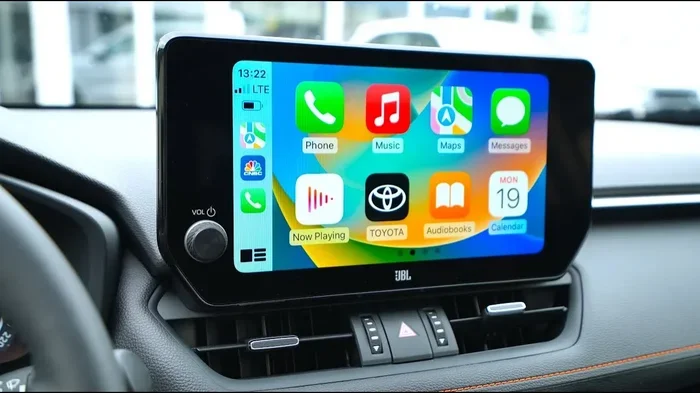
Apple CarPlay is a feature that mirrors your iPhone onto your car’s infotainment screen. Once connected, you can access your apps, make calls, send messages, and get directions. All of this happens through a simple and safe interface designed for the road.
The RAV4 supports CarPlay on most models from 2019 onward. If you have a newer RAV4, you may even have wireless Apple CarPlay, which connects without any cables at all. Older models from 2013 to 2018 may need a different approach, but the basic idea is the same. Your phone becomes an extension of your car’s system.
Here is what CarPlay gives you:
- Navigation: Use Google Maps, Waze, or Apple Maps on the big screen.
- Music: Access Spotify, Apple Music, Podcasts, and more.
- Calls and Texts: Make hands-free calls and send voice-to-text messages.
- Siri Integration: Use voice commands to control everything without touching your phone.
- Smart Recommendations: CarPlay learns your habits and suggests apps you use often.
Do You Need Any Special Equipment?
For most RAV4 owners, the answer is no. If your car came with the infotainment system that supports CarPlay, you are good to go. All you need is an iPhone and, in some cases, a USB cable. Wireless CarPlay does not require any extra hardware. However, if your RAV4 is older and does not support CarPlay natively, you may need an aftermarket adapter. But this guide focuses on factory-installed CarPlay, which is what most modern RAV4 owners have.
How to Connect Apple CarPlay to Your RAV4 Step by Step
Now let us get into the meat of the guide. Below, we walk you through both connection methods. Pick the one that matches your RAV4 setup.
Method 1: Wired Connection Using a USB Cable
The wired method works on almost all RAV4 models that support CarPlay. It is fast, reliable, and does not require any special setup. Here is exactly what to do:
- Plug in your iPhone. Use the USB cable that came with your phone. Insert it into the USB port in your RAV4. The port is usually located in the center console or the armrest area.
- Unlock your iPhone. Make sure your phone is unlocked and on the Home screen. You may see a prompt on the car screen that says “Trust This Computer.” Tap Trust.
- Select CarPlay on the RAV4 screen. Press the CarPlay icon on your infotainment display. It may look like a phone screen with the Apple logo.
- Set up your preferences. Follow the on-screen prompts to choose your apps, enable Siri, and adjust settings.
- You are connected. Your iPhone screen will mirror onto the RAV4 display. You can now use all your favorite apps safely.
Quick Tip: If your RAV4 does not recognize the phone, try a different USB cable or a different USB port. Some cables are charge-only and do not support data transfer. This is one of the most common reasons CarPlay fails to connect.
Method 2: Wireless Apple CarPlay Connection
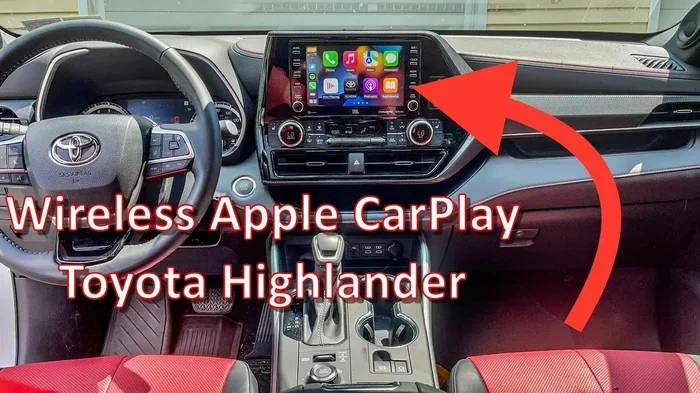
If you have a newer RAV4 (2021 and newer, depending on trim), you may have wireless CarPlay. This method uses Bluetooth and Wi-Fi to connect without any cables. It is incredibly convenient.
- Open Settings on your iPhone. Go to Settings, then General, then CarPlay.
- Select your RAV4. Your car should appear in the list of available vehicles. Tap on it.
- Follow the prompts on both screens. Your RAV4 display will show a pairing request. Confirm it on both your phone and the car screen.
- Choose your wireless settings. You can set CarPlay to connect automatically when you get in the car. This is a great feature to enable.
- Done. Your CarPlay will now load every time you start the engine.
Wireless CarPlay is a game-changer. You never have to fumble with cables again. If your RAV4 does not have this feature, you can still use the wired method or consider a wireless CarPlay adapter that plugs into the USB port.
How to Disconnect and Reconnect CarPlay
Sometimes you need to disconnect CarPlay and reconnect it. Maybe your phone is acting up, or you want to connect a different device. Here is how:
- For wired: Simply unplug the USB cable from your iPhone or the car.
- For wireless: Go to Settings on your iPhone, tap CarPlay, and select your RAV4. Choose “Disconnect This Car.” To reconnect, just go back into CarPlay settings and select your car again.
Troubleshooting Common Apple CarPlay Connection Issues
Even though CarPlay is designed to be simple, things can go wrong. Here are the most common issues RAV4 owners face and how to fix them.
CarPlay Does Not Appear on the Screen
This is the number one issue people run into. If CarPlay does not show up, try these steps:
- Check that your iPhone is unlocked and on the Home screen.
- Try a different USB cable. A damaged cable is the most common culprit.
- Restart your iPhone. Hold down the power button, slide to power off, and turn it back on.
- Restart your RAV4 infotainment system. Hold down the power button on the screen for about 10 seconds until it reboots.
- Make sure CarPlay is enabled on your iPhone. Go to Settings, then General, then CarPlay, and ensure it is turned on.
CarPlay Connects But Apps Do Not Work
If the connection works but your apps freeze or do not load, try this:
- Update your iPhone to the latest iOS version. Go to Settings, then General, then Software Update.
- Check for RAV4 infotainment updates. Some updates require a visit to a dealership, but many can be done over the air.
- Delete and reinstall the problem app on your iPhone.
- Clear the CarPlay cache by resetting your iPhone’s CarPlay settings.
Siri Does Not Respond
Siri is a key part of the CarPlay experience. If it is not working, check these things:
- Make sure Siri is enabled on your iPhone. Go to Settings, then Siri & Search.
- Check that “Listen for Hey Siri” is turned on if you want hands-free activation.
- Make sure your iPhone is connected to CarPlay and not just playing music through Bluetooth.
For more help with car technology issues, check out our guide on how to clear your service light if you see any warning indicators while troubleshooting.
Wired vs Wireless Apple CarPlay: Which Is Better?
Both connection methods have their strengths. Here is a quick comparison to help you decide which works best for your situation.
| Feature | Wired CarPlay | Wireless CarPlay |
|---|---|---|
| Connection Method | USB Cable | Bluetooth and Wi-Fi |
| Setup Speed | Fast (plug and play) | Fast (automatic pairing) |
| Reliability | Very high | High |
| Convenience | Requires cable each time | Connects automatically |
| Availability | All RAV4 models with CarPlay | Newer RAV4 models only |
| Charging | Yes (phone charges while driving) | No (phone battery drains) |
As you can see, wired CarPlay has one big advantage: it charges your phone while you drive. If you are on a long road trip, this matters. Wireless CarPlay wins on convenience and a cleaner dashboard with no cables. If your RAV4 supports both, you can use either one depending on your mood.
Many RAV4 owners use wired during long trips for the charging benefit and wireless for daily commutes. It is nice to have both options available.
Tips to Get the Most Out of Apple CarPlay in Your RAV4
Once your CarPlay is connected, there are a few things you can do to improve the experience. These tips will help you get more out of the system every day.
Keep Your iPhone and RAV4 Software Updated
Software updates bring bug fixes, new features, and performance improvements. Apple releases iOS updates regularly, and Toyota also pushes infotainment updates for the RAV4. Keeping both devices updated ensures the best CarPlay experience. If you have not updated your iPhone in a while, now is a great time to check.
Use Siri for Hands-Free Control
One of the biggest benefits of CarPlay is staying focused on the road. Siri lets you do almost everything without touching your phone. You can say “Hey Siri, navigate to the nearest gas station” or “Hey Siri, play my workout playlist.” This is especially helpful when you are driving the RAV4 and need to keep both hands on the wheel.
Organize Your CarPlay Apps
CarPlay lets you pin your most-used apps to the home screen. You can rearrange them and remove the ones you never use. This keeps your screen clean and makes it easy to find what you need while driving. Spend a few minutes organizing your apps, and you will thank yourself every time you get in the car.
Use a High-Quality USB Cable
If you use the wired method, the quality of your USB cable matters. Cheap cables often fail to transmit data properly, which causes connection problems. Invest in a certified MFi (Made for iPhone) cable. These cables are tested to work reliably with Apple devices and will save you a lot of frustration.
Set CarPlay to Connect Automatically
For wireless CarPlay users, setting your RAV4 to connect automatically is a must. You do not have to do anything when you sit in the driver’s seat. The system connects on its own, and you are ready to go. This small setting makes a huge difference in daily convenience.
Know When to Factory Reset
If nothing else works and CarPlay still will not connect, you can try a factory reset of the RAV4 infotainment system. This wipes all settings and restores the system to its original state. You will lose any custom settings, so make sure you remember your preferences before doing this. A factory reset fixes most stubborn connection issues.
If you are having persistent electrical or system issues with your RAV4, you may want to check whether your starter motor could be the cause of broader system problems.
Apple CarPlay Safety Features You Should Know About
Apple designed CarPlay with safety in mind. The interface is simplified to reduce distractions while driving. Here are some safety features that make CarPlay a smart choice for RAV4 owners.
Limited Screen Interaction: CarPlay only shows a few apps at a time. You cannot scroll through long menus or tap on small links. This keeps your eyes on the road.
Voice Control with Siri: Siri handles most tasks without you lifting a finger. You can make calls, send texts, change music, and get directions using only your voice.
Do Not Disturb While Driving: This iPhone feature works hand in hand with CarPlay. It silences notifications and sends automatic replies to texts, letting people know you are driving.
Large Touch Targets: CarPlay buttons are big and easy to tap. You do not need to look closely at the screen to press the right button. This is especially helpful when you are stopped at a light.
These features make CarPlay one of the safest ways to use your phone in the car. Toyota included it in the RAV4 because they understand how important safety is to SUV drivers and families.
Apple CarPlay and Your RAV4 Model Year: What You Need to Know
Not all RAV4 models support CarPlay the same way. Here is a quick breakdown by model year so you know what to expect.
- 2019 RAV4: Supports wired CarPlay through the USB port. Wireless CarPlay was not available in 2019.
- 2020 RAV4: Same as 2019. Wired CarPlay is standard on most trims.
- 2021 RAV4: Wireless CarPlay became available on higher trims. The base LE trim still uses wired.
- 2022 and Newer RAV4: Wireless CarPlay is available on most trims. Some base models may still require a cable.
If you are unsure whether your RAV4 supports wireless CarPlay, check your owner’s manual or look for the CarPlay settings in the infotainment system. If you see a wireless option, your car is equipped for it.
For owners considering modifications or accessories, you might want to read our article on adding a roof rack to your RAV4 to keep your gear organized on road trips.
Frequently Asked Questions
Can I Use Apple CarPlay on a 2018 RAV4?
Yes, but only with a wired connection. The 2018 RAV4 supports CarPlay through the USB port. You will need an iPhone 5 or newer and a compatible USB cable. Wireless CarPlay was not available in the 2018 model year.
Why Does My Apple CarPlay Keep Disconnecting From My RAV4?
This usually happens because of a loose USB connection, a software glitch, or an outdated iOS version. Try using a different USB cable, restarting both your phone and the RAV4 infotainment system, and updating your iPhone software. If the problem persists, resetting the RAV4 infotainment settings often fixes it.
Can I Use Apple CarPlay and Android Auto at the Same Time?
No, CarPlay and Android Auto cannot run simultaneously. The system will only display one at a time. Since the RAV4 supports CarPlay, you will need an Android phone to use Android Auto. Most RAV4 owners stick with one ecosystem based on their phone.
Does Apple CarPlay Work When the Engine Is Off?
Yes, in most RAV4 models. CarPlay can remain active with the engine off as long as the infotainment system is powered. This is useful for using navigation or music while parked. Some RAV4 models may automatically disable CarPlay after a certain period to preserve battery life.
Is Apple CarPlay Free to Use?
Apple CarPlay itself is completely free. There are no subscription fees or hidden charges. However, some of the apps you use through CarPlay, like Spotify or Google Maps, may require a paid subscription for full features. The CarPlay interface and basic functionality cost nothing.
Can I Connect Multiple iPhones to My RAV4 CarPlay?
Yes, you can. The RAV4 can remember multiple CarPlay devices. When a different iPhone connects, the system will ask if you want to switch to that device. This is handy for families who share the same RAV4 but have different iPhones.
Final Thoughts
Connecting Apple CarPlay to your RAV4 is one of the easiest and most rewarding upgrades you can make. It transforms your driving experience by bringing your favorite apps, music, and navigation right to the center console. Whether you use the wired or wireless method, the setup takes only a few minutes.
Remember to keep your iPhone and RAV4 software updated, use a quality USB cable, and take advantage of Siri for hands-free control. If you run into any issues, the troubleshooting tips in this guide should help you get back on track quickly.
The RAV4 is already an excellent SUV, and with Apple CarPlay, it becomes even better. You will wonder how you ever drove without it. Now that you know exactly how to connect Apple CarPlay to your RAV4, go ahead and give it a try. Your next drive is going to be more connected, more convenient, and a lot more fun.