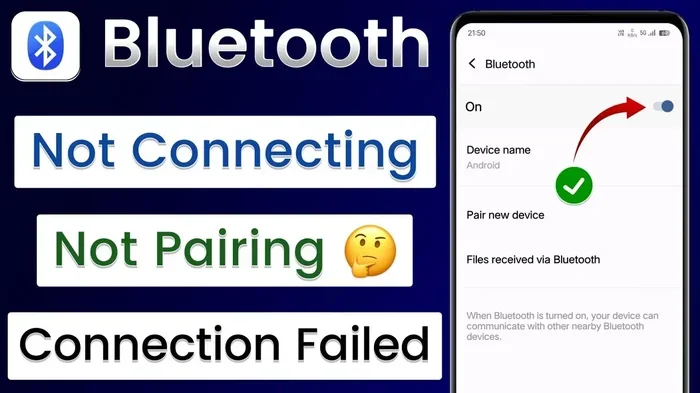
How Do I Restart My Bluetooth Cache for Better Connectivity
How Do I Restart My Bluetooth Cache? is an essential topic that provides valuable insights.
Key Takeaways
- Understanding How Do I Restart My Bluetooth Cache?: Provides essential knowledge
📑 Table of Contents
- What Is a Bluetooth Cache and Why Does It Matter?
- Common Bluetooth Problems That a Cache Restart Fixes
- How to Restart Bluetooth Cache on Android
- How to Restart Bluetooth Cache on iPhone
- How to Restart Bluetooth Cache in Your Car
- When Should You Restart Your Bluetooth Cache?
- Quick Tips to Keep Bluetooth Running Smoothly
- Key Takeaways
- Conclusion
What Is a Bluetooth Cache and Why Does It Matter?
Your phone and car store small files related to Bluetooth. These files are called a cache. They remember your paired devices, settings, and connection details. This makes reconnecting faster and easier. But like any stored data, Bluetooth cache can build up over time. Old files can cause conflicts with new connections.
A Bluetooth cache works in the background every time you connect a device. It saves your preferences and pairing history. This is helpful most of the time. But sometimes the cache gets corrupted. A corrupted cache leads to connection problems. Your device might refuse to pair. Audio might sound choppy. Or your connection might drop randomly.
Restarting the cache clears these problematic files. It forces your device to rebuild fresh Bluetooth data. This simple action can solve many common issues. It is one of the first steps in Bluetooth troubleshooting. Before you try complex fixes, restart your cache first.
How Bluetooth Cache Affects Your Daily Use
You might not even realize your cache is causing problems. But here are signs that your Bluetooth memory needs a reset:
- Your device takes forever to find nearby Bluetooth devices.
- Music keeps pausing or stuttering during playback.
- Your phone won’t connect to your car stereo.
- You see error messages when trying to pair.
- Your Bluetooth device appears in the list but won’t connect.
If you notice any of these, a cache restart can help. It frees up space and removes broken data. Your Bluetooth connection should work much better afterward.
Common Bluetooth Problems That a Cache Restart Fixes
Many people don’t realize how many issues a cache restart solves. Let’s look at the most common problems. Each one can ruin your day if left unfixed.
Paired Devices Won’t Connect
This is one of the most annoying Bluetooth issues. Your device shows up in the list. You tap connect. Nothing happens. You try again and again. Still nothing. The problem is often old pairing data stuck in the cache. Restarting the cache wipes this broken data. Your device can then form a fresh connection.
Audio Cuts Out or Sounds Scratchy
Bluetooth audio problems are super common. You are listening to music. Suddenly it skips or sounds fuzzy. This often happens because the cache has outdated info. Your device struggles to match old settings with new ones. Clearing the cache removes this mismatch. Audio quality improves right away.
Bluetooth Keeps Turning Off by Itself
Some devices turn Bluetooth off randomly. This drains your battery. It also interrupts your music or calls. A glitch in the cache can trigger this behavior. Restarting the cache resets the system. Your Bluetooth stays on where it should.
New Devices Won’t Pair
When you try to pair a new device, it fails. You have checked everything else. The problem might be a full or broken cache. Your system can’t process new pairing info properly. A cache restart clears the way for new connections.
How to Restart Bluetooth Cache on Android
Android phones make it easy to clear your Bluetooth cache. You don’t need any special apps. Just follow these steps carefully. The process takes about two minutes.
Step-by-Step Guide for Android Devices
Here is exactly how to do it on most Android phones:
- Open your Settings app on your phone.
- Tap on Apps or Applications. This might look different on your phone.
- Find and tap Bluetooth in the app list.
- Select Storage or Storage & Cache.
- Tap Clear Cache. Do not tap Clear Data yet.
- Go back to your Bluetooth Settings.
- Turn Bluetooth off and then back on.
That is it! Your Bluetooth cache is now refreshed. Try connecting your device again. It should work much better now.
What If Clearing the Cache Doesn’t Work?
Sometimes clearing the cache alone is not enough. In that case, try clearing the Bluetooth data too. Here is what to do:
- Go back to the Bluetooth Storage screen.
- Tap Clear Data or Clear Storage.
- Restart your phone completely.
- Turn Bluetooth back on.
- Re-pair your device from scratch.
Warning: Clearing data removes all your paired Bluetooth devices. You will need to pair them again. Make sure you know your device passwords before doing this.
Quick Tips for Android Bluetooth Cache
- Restart your phone after clearing the cache. This helps the system rebuild properly.
- Keep your phone software updated. Updates often fix Bluetooth bugs.
- Avoid connecting to too many devices at once. This can overload the cache.
- Restart your Bluetooth connection weekly to prevent build-up.
How to Restart Bluetooth Cache on iPhone
iPhone users have a slightly different process. Apple does not let you clear cache directly. But you can achieve the same result with a few simple steps. These steps reset your Bluetooth settings and clear old data.
Step-by-Step Guide for iPhone
Follow these steps on your iPhone to restart Bluetooth:
- Open the Settings app.
- Tap General.
- Scroll down and tap Transfer or Reset iPhone.
- Tap Reset.
- Select Reset Network Settings.
- Enter your passcode if asked.
- Confirm the reset.
- Your phone will restart automatically.
After your iPhone restarts, go to Settings and turn Bluetooth on. You will need to re-pair your devices. But your Bluetooth memory is now fresh and clean.
Why This Works for iPhone
Resetting network settings clears all Bluetooth pairings and Wi-Fi data. It removes old or broken Bluetooth pairing history. Your phone starts fresh. This is the iPhone equivalent of clearing the cache. It fixes most connection issues quickly.
Alternative Fix for iPhone Users
If you don’t want to reset all network settings, try this first:
- Turn Bluetooth off from your Control Center.
- Wait 30 seconds.
- Turn Bluetooth back on.
- Forget the problem device in Settings.
- Re-pair the device fresh.
This simple trick works for many minor issues. But if the problem continues, the full reset is your best bet.
How to Restart Bluetooth Cache in Your Car
Car Bluetooth problems are especially frustrating. You are driving, and your audio keeps cutting out. Or your phone won’t connect to your car stereo. Restarting the Bluetooth cache in your car can fix these issues fast.
Steps to Reset Car Bluetooth
Every car system is a little different. But most follow a similar process. Here is the general approach:
- Turn on your car’s infotainment system.
- Go to Settings or Phone Settings.
- Find the Bluetooth menu.
- Look for Paired Devices or Device List.
- Select your phone from the list.
- Choose Delete or Forget Device.
- Turn Bluetooth off and back on.
- Re-pair your phone from scratch.
Some car systems also have a factory reset option. This clears all Bluetooth data at once. Check your car’s manual for specific steps. The reset option is usually in System Settings or Factory Defaults.
Tips for Car Bluetooth Connectivity
- Keep your phone close to your car’s antenna. It is usually near the rearview mirror.
- Turn off other Bluetooth devices in the car. Too many connections can cause conflicts.
- Restart your car’s infotainment system before re-pairing.
- Update your car’s firmware if possible. New updates fix Bluetooth bugs.
- Avoid using VPN apps on your phone. They can interfere with car Bluetooth.
Common Car Bluetooth Mistakes to Avoid
Many car Bluetooth problems come from simple mistakes. Here are things to watch out for:
- Leaving old pairings on the list. Too many saved devices slow down the system.
- Not restarting the car system. A simple restart fixes many issues.
- Ignoring software updates. Car makers release updates that fix Bluetooth bugs.
- Placing your phone in the wrong spot. Signal strength depends on phone placement.
Avoid these mistakes and your Bluetooth car connection will stay strong.
When Should You Restart Your Bluetooth Cache?
You don’t need to restart your cache every day. But knowing when to do it saves a lot of frustration. Here are the best times to take action.
After a Software Update
Software updates can change how Bluetooth works. Old cache data may not match the new system. Restart your cache after every major update. This prevents Bluetooth software glitches from causing problems.
When You Buy a New Device
Adding a new Bluetooth device can overload the cache. Your system struggles to manage too many pairings. Restart the cache before pairing new devices. This keeps everything running smoothly.
When You Notice Connection Drops
If your Bluetooth keeps disconnecting, don’t ignore it. A cache restart is a quick fix. Try it before you dig into deeper troubleshooting. It solves the problem more often than you might think.
As Regular Maintenance
Think of cache restarting like changing your oil. Regular maintenance keeps things running well. Restart your Bluetooth cache once a month. This prevents build-up and keeps connections strong.
Quick Tips to Keep Bluetooth Running Smoothly
Prevention is always better than fixing problems. Follow these tips to keep your Bluetooth connection strong all the time.
Keep Your Devices Updated
Software updates fix Bluetooth bugs. They also improve performance. Always install updates when they are available. This applies to your phone, car, and any Bluetooth device you use.
Limit the Number of Paired Devices
Your device remembers every device you ever paired with. Old pairings take up space. They can also cause connection conflicts. Delete devices you no longer use. Keep your Bluetooth device list clean and short.
Restart Devices Regularly
Restarting your phone or car system clears temporary files. It resets the Bluetooth radio. Make it a habit to restart weekly. Your connections will be more stable.
Avoid Signal Interference
Other electronics can interfere with Bluetooth. Wi-Fi routers, microwaves, and USB 3.0 devices all cause interference. Keep your Bluetooth device away from these sources. This improves signal strength and reduces drops.
Use the Right Bluetooth Profile
Different devices use different Bluetooth profiles. A2DP is for audio. HFP is for calls. Make sure your device is using the right profile. Wrong profiles cause audio problems and connection issues.
Key Takeaways
- Restart your Bluetooth cache regularly: Clearing old Bluetooth data prevents connection drops and audio glitches.
- The process is simple on Android: Go to Settings, find Bluetooth in the Apps list, and clear the cache in Storage settings.
- iPhone users need a network reset: Reset Network Settings clears Bluetooth pairings and gives your iPhone a fresh start.
- Car Bluetooth issues are common: Delete old pairings, restart your infotainment system, and re-pair your phone for better results.
- Know when to act: Restart your cache after software updates, when adding new devices, or when you notice connection problems.
- Preventive maintenance helps: Keep paired devices list short, update software, and restart devices weekly for best performance.
- It takes just minutes: A cache restart is a quick fix that solves many Bluetooth problems without technical skills.
Conclusion
Restarting your Bluetooth cache is one of the easiest and most effective fixes you can do. It solves connection drops, audio glitches, and pairing failures. Whether you use Android, iPhone, or a car system, the process is simple. A few minutes of your time can save hours of frustration.
Don’t let Bluetooth problems slow you down. Try restarting your cache the next time your connection acts up. You will be surprised how well it works. Keep your Bluetooth connection strong with regular maintenance. Your devices will thank you for it.
Share this guide with friends who struggle with Bluetooth issues. A simple cache restart might be all they need. Stay connected and enjoy seamless audio every day.
Frequently Asked Questions
What happens when I restart my Bluetooth cache?
Restarting your Bluetooth cache clears temporary files that your device stores for Bluetooth connections. Old or corrupted data gets removed. Your device then rebuilds fresh Bluetooth pairing data. This often fixes connection issues and audio problems. You may need to re-pair your devices afterward.
Will I lose my paired Bluetooth devices after a cache restart?
On Android, clearing the cache alone will not delete your paired devices. But clearing Bluetooth data will. On iPhone, resetting network settings removes all pairings. Always re-pair your devices after a full data reset. Keep your device passwords handy before doing a full reset.
How often should I restart my Bluetooth cache?
Once a month is a good routine for most users. You should also restart after software updates. If you notice connection problems, restart right away. Regular maintenance keeps Bluetooth running smoothly and prevents build-up of old data.
Can restarting Bluetooth cache fix audio stuttering in my car?
Yes, it often can. Audio stuttering happens when old Bluetooth data conflicts with new settings. Restarting the cache clears this broken data. Your car and phone form a fresh connection. This usually fixes stuttering and audio dropouts in car systems.
Is it safe to restart Bluetooth cache on my phone?
Absolutely. It is completely safe and does not harm your phone. You are only clearing temporary files. No personal data or photos are affected. It is one of the safest first steps in Bluetooth troubleshooting. Everyone should try it before more complex fixes.
Why does my Bluetooth keep disconnecting even after a cache restart?
If the problem continues after a cache restart, other factors may be involved. Signal interference from other electronics can cause disconnections. Outdated software or firmware may also be the culprit. Try moving closer to your device and updating both your phone and car software. If issues persist, consult a professional for deeper Bluetooth troubleshooting.
=== END ===