How Do I Reset My Screen Back to Normal on Windows 10
Resetting your screen back to normal on Windows 10 is easier than you think. Whether your display looks stretched, zoomed in, or flickering, a few simple tweaks can fix the problem fast. This guide walks you through every method, from basic display settings to driver updates, so you can get your screen looking right again in minutes.
There is nothing more frustrating than sitting down at your desk and finding that your Windows 10 screen looks completely wrong. Maybe everything is stretched, zoomed in, or flickering like crazy. You try clicking around, but nothing seems to fix it.
The good news is that resetting your screen back to normal on Windows 10 is usually a quick and painless process. You do not need to be a tech expert. Most fixes take just a few minutes and require no special tools. In this guide, we walk you through every method step by step, so you can get back to work or play without any hassle.
We will cover everything from simple display adjustments to driver updates and even some advanced tricks. By the end, you will know exactly what to do no matter what kind of screen problem you are facing. Let us dive in and get your display looking right again.
Key Takeaways
- Display settings are the first fix: Adjusting resolution and scale often solves the problem in seconds.
- Graphics drivers matter a lot: Outdated or corrupted drivers cause most screen glitches on Windows 10.
- Windows has a built-in reset option: You can restore default display settings without third-party tools.
- Specific problems need specific fixes: Flickering, zoom, and rotation each have targeted solutions.
- Prevention saves time: Regular updates and proper cable connections keep your display running smoothly.
- Car infotainment screens share similar reset principles: Many of the same troubleshooting ideas apply to car displays, just like resetting your oil life system follows a similar logic.
- Phone-to-car screen connections can cause display issues: Problems with phone integration features sometimes mirror PC display glitches.
📑 Table of Contents
Why Your Windows 10 Screen Might Look Wrong
Before we jump into the fixes, it helps to understand why your screen might look strange in the first place. Windows 10 relies on a complex system of display settings, graphics drivers, and cable connections to show you a clear picture. When one of these pieces goes wrong, your screen can look distorted, blurry, or just plain off.
Several common issues can cause your display to act up. Screen resolution changes are a big one. Sometimes Windows updates your resolution automatically, and suddenly everything looks oversized or tiny. Display scaling problems can make text and icons appear way too large or too small. And graphics driver conflicts can cause flickering, flashing, or even a completely black screen.
Common Display Problems on Windows 10
Let us quickly go over the most common screen problems people face. Knowing what you are dealing with helps you pick the right fix faster.
- Stretched or distorted image: The picture looks wider or taller than it should. Everything appears squished or pulled.
- Zoomed-in display: Text and icons look huge. You can only see a small portion of the screen at once.
- Flickering or blinking: The screen flashes on and off or has constant shimmering.
- Black screen or no signal: The monitor turns on but shows nothing, or it goes black randomly.
- Screen rotation: Your display has flipped sideways or upside down for no reason.
- Blurry or fuzzy text: Everything looks out of focus, even after adjusting the resolution.
What Causes These Screen Issues
Screen problems on Windows 10 usually come down to a few root causes. Software updates sometimes change your display settings without asking. New applications can conflict with your graphics driver. Loose or damaged cables can interrupt the signal between your PC and monitor. And in some cases, the graphics card itself needs an update or a reset.
It is also worth noting that similar display reset principles apply to other tech. For example, phone-based car startup systems sometimes face their own screen glitches, and the troubleshooting mindset is very similar. Understanding the basics of display reset gives you skills that transfer across devices.
How to Reset Your Screen Back to Normal on Windows 10
Now let us get to the good stuff. Here are the most effective methods to reset your screen back to normal on Windows 10. Try them in order, starting with the simplest fix first.
Method 1: Adjust Your Display Settings
The first thing you should try is adjusting your display settings manually. This fixes the problem most of the time and takes less than a minute.
- Right-click on an empty area of your desktop.
- Click Display settings from the menu that appears.
- Look for the Scale and layout section.
- Set the Display resolution to your monitor’s recommended value. It is usually labeled as “Recommended.”
- Adjust the Scale setting to 100% if your text and icons look too big.
- Click Keep changes when prompted.
If your screen is rotated, look for the Display orientation dropdown in the same menu. Select Landscape to return to the normal view. This simple fix resolves the issue for many Windows 10 users.
Method 2: Update or Roll Back Your Graphics Driver
Your graphics driver is the software that tells your computer how to render images on your screen. When it becomes outdated or corrupted, display problems follow. Updating or rolling back the driver often fixes these issues quickly.
- Right-click the Start button and select Device Manager.
- Expand the Display adapters section.
- Right-click your graphics card and select Update driver.
- Choose Search automatically for drivers and follow the prompts.
If a recent update caused the problem, you can roll back instead. Right-click the graphics card, go to Properties, then click Roll Back Driver under the Driver tab. This restores the previous version that worked fine.
For a more thorough fix, visit your graphics card manufacturer’s website directly. NVIDIA, AMD, and Intel all offer free driver downloads. Installing the latest version manually ensures you get the most stable and compatible driver available.
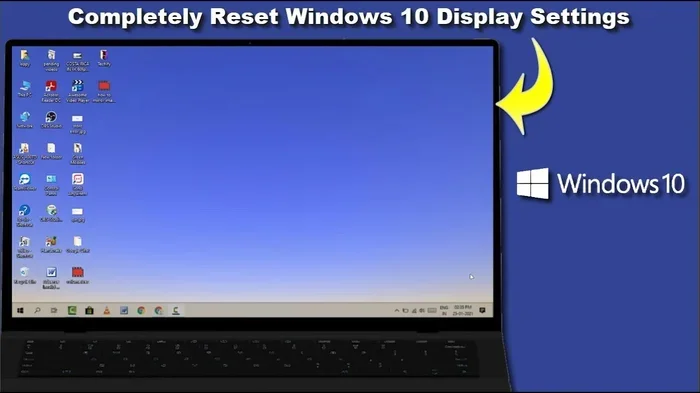
Method 3: Reset Display Settings Through Windows
Windows 10 has a built-in way to reset your display settings to their defaults. This is a great option if the manual adjustments did not work or if you are not sure what changed.
- Go to Settings by pressing Windows + I.
- Click on System, then select Display.
- Scroll down and click Advanced display settings.
- Look for the option to Reset display settings or Restore defaults.
- Confirm the reset and restart your computer.
This method clears any custom settings that might be causing problems. Your screen should return to its normal appearance after the restart. If it does not, move on to the next method below.
Method 4: Check Your Cables and Connections
It sounds simple, but loose or damaged cables cause more screen problems than people realize. A poorly connected HDMI or DisplayPort cable can lead to flickering, distortion, or a completely blank screen.
- Unplug and replug the cable at both ends — the monitor side and the PC side.
- Inspect the cable for visible damage like fraying or bent pins.
- Try a different cable if you have one available.
- Test a different port on your computer or monitor if possible.
Sometimes the port itself can become dirty or loose over time. A quick cable swap often reveals whether the problem is the cable or something deeper in the system.
Method 5: Run Windows Troubleshooter
Windows 10 comes with a built-in troubleshooter designed specifically for display problems. It automatically detects common issues and applies fixes for you.
- Go to Settings and click Update & Security.
- Select Troubleshoot from the left menu.
- Click on Additional troubleshooters.
- Find and click Display, then select Run the troubleshooter.
- Follow the on-screen instructions and apply any recommended fixes.
The troubleshooter is a great tool because it can catch issues you might not think to check manually. It takes just a couple of minutes and often resolves problems that manual methods miss.
Quick Fixes for Specific Screen Problems
Some screen problems need targeted solutions. Here are quick fixes for the most common specific issues you might encounter.
Fix a Flickering or Blinking Screen
A flickering screen is one of the most annoying problems you can face. It usually stems from a driver conflict or an incompatible application. Start by updating your graphics driver using the method above. If that does not work, check whether a specific app triggers the flickering. Open your Task Manager and look for any unfamiliar programs running in the background. Close them one by one to identify the culprit.
Another common cause is an incompatible refresh rate. Go to Display settings, then Advanced display settings, and make sure your refresh rate matches your monitor’s supported rate. A mismatch here can cause persistent flickering that drives you crazy.
Fix a Zoomed-In or Cropped Display
If your screen looks zoomed in and you cannot see the edges, your display scale is likely set too high. Head to Settings > System > Display and change the Scale and layout percentage to 100%. This restores the normal view and makes everything fit your screen properly.
You can also check your resolution in the same menu. A lower-than-recommended resolution causes everything to look zoomed in and pixelated. Switching back to the recommended resolution fixes this instantly.
Fix Screen Rotation Issues
Sometimes your screen flips sideways or upside down. This usually happens after a accidental key combo or a driver glitch. Press Ctrl + Alt + Arrow keys to cycle through rotation options. The right arrow key typically returns the screen to landscape mode.
If the keyboard shortcut does not work, go to Display settings and manually select Landscape under the Display orientation dropdown. This locks your screen back to the normal viewing position.
Preventing Future Screen Problems
Once you have your screen looking normal again, you want to keep it that way. Prevention is always easier than fixing problems after they happen. Here are some simple habits that keep your Windows 10 display running smoothly.
Regular Maintenance Tips
- Keep your drivers updated: Check for graphics driver updates at least once a month. Set a reminder if needed.
- Install Windows updates promptly: Microsoft regularly releases patches that fix display bugs and improve compatibility.
- Handle cables with care: Avoid yanking or bending cables at sharp angles. Proper cable management extends their lifespan.
- Restart your PC regularly: A simple restart clears temporary glitches and refreshes your display system.
- Avoid unauthorized software: Free screen management tools can sometimes change your settings without asking.
Similar to how regular car maintenance keeps things running smoothly — just like getting your oil changed at the right place prevents bigger problems — consistent PC maintenance prevents display issues from creeping back in.
When to Seek Professional Help
Most screen problems can be fixed at home using the methods above. However, some situations call for professional help. If your screen still looks wrong after trying every fix in this guide, the issue might be hardware-related. A failing monitor, a damaged graphics card, or a problem with your motherboard could be the root cause.
Take your PC to a trusted technician if you notice any of these signs: physical damage to the screen, unusual noises from your computer, or a burning smell. These are not issues you should try to fix yourself. A professional can diagnose the problem safely and get your system back to working order.
How Different Devices Handle Screen Resets
Screen reset principles are not limited to Windows 10 PCs. Many devices share similar troubleshooting approaches. For instance, car infotainment screens sometimes need resets too, much like how you might need to unlock your Toyota with your phone when the system glitches. The underlying logic is the same: restart, update, and reset to defaults.
Understanding how different devices handle display issues makes you a better troubleshooter overall. The skills you learn from fixing a Windows 10 screen apply to tablets, laptops, monitors, and even car display systems. Once you know the basics, you can adapt those skills to any device that shows you a screen.
The key takeaway is that most screen problems have simple, accessible solutions. You do not need expensive software or specialized knowledge. A little patience and the right steps go a long way toward getting your display back to normal.
Final Thoughts on Resetting Your Screen
Dealing with a weird-looking screen on Windows 10 can feel overwhelming at first. But as we have covered throughout this guide, the solutions are straightforward and within anyone’s reach. Start with the simplest fix — adjusting your display settings — and work your way up to driver updates and built-in troubleshooters if needed.
Resetting your screen back to normal does not have to be a stressful experience. With the right knowledge and a few minutes of your time, you can fix almost any display problem on your own. Keep this guide bookmarked for future reference, and do not hesitate to try each method until you find the one that works for your specific situation.
Your screen is one of the most important parts of your computing experience. Take care of it, keep your drivers updated, and remember that most problems have simple solutions. Now go ahead and reset that screen and get back to what matters most.
Frequently Asked Questions
How long does it take to reset a screen back to normal on Windows 10?
Most screen resets take between two and ten minutes. Simple fixes like adjusting display settings take less than a minute. Driver updates and troubleshooting may take a few more minutes, but the process is quick overall.
Will resetting my screen delete any files on my computer?
No. Resetting your display settings only affects how your screen looks. It does not touch your files, applications, or personal data. Your documents, photos, and programs stay exactly where they are.
Why does my Windows 10 screen keep going back to a weird setting?
This usually happens when a program or update keeps changing your display settings automatically. Updating your graphics driver and checking for conflicting software usually stops the problem from coming back.
Can a bad cable cause my screen to look distorted?
Yes. A loose, damaged, or incompatible cable can cause flickering, distortion, or a blank screen. Try swapping the cable or testing a different port to rule out cable-related issues.
Do I need to buy new software to fix my screen?
No. Windows 10 has all the tools you need to fix most screen problems for free. Built-in settings, display adjustments, and the troubleshooter handle the vast majority of issues without any extra software.
What should I do if none of these fixes work?
If nothing works, the problem might be hardware-related. Your monitor, graphics card, or cable could be failing. In that case, it is best to consult a professional technician who can diagnose and replace any faulty components safely.
=== META DESCRIPTION ===
Learn how to reset your screen back to normal on Windows 10 with simple step-by-step fixes. Quick, easy solutions for distorted, zoomed, or flickering displays.