How Do I Add Apps to My Toyota and Upgrade Your Ride
Adding apps to your Toyota is easier than you think. Whether you want Apple CarPlay, Android Auto, or music and navigation apps, this guide walks you through every step. You will learn how to access the Toyota infotainment system, download apps, and get the most out of your ride.
Have you ever wished you could add more apps to your Toyota? Maybe you want Spotify, Google Maps, or a weather app right on your dashboard. The good news is that adding apps to your Toyota is totally doable, and it is not as complicated as you might think.
Modern Toyotas come packed with technology. From Toyota Entune to wireless Apple CarPlay, the options for Toyota infotainment are better than ever. Whether you drive a Camry, RAV4, or Corolla, you can turn your dashboard into a smart hub. In this guide, we will show you exactly how to do it.
We will cover everything from setting up phone integration to downloading your favorite apps. You will also learn about common mistakes and pro tips that save time. By the end, you will feel confident upgrading your ride with Toyota apps that make driving smarter and safer.
Key Takeaways
- Toyota infotainment systems support multiple app types: navigation, music, messaging, and more.
- Apple CarPlay and Android Auto are the most popular ways to add smartphone apps to your Toyota.
- Toyota Entune offers built-in app access for compatible models.
- Software updates are essential to keep your apps running smoothly and access new features.
- Phone integration via Bluetooth or USB is the foundation of adding apps to your Toyota.
📑 Table of Contents
- Understanding Your Toyota Infotainment System
- How to Add Apps to Your Toyota Step by Step
- Popular Apps You Can Add to Your Toyota
- Troubleshooting Common App Issues
- Tips to Get the Most Out of Your Toyota Apps
- Comparison: Toyota App Methods at a Glance
- Expert Insights on Toyota App Integration
- Common Mistakes to Avoid When Adding Apps
- Frequently Asked Questions
- Conclusion
Understanding Your Toyota Infotainment System
Before you add any apps, you need to understand what system your Toyota uses. Different model years have different setups. Knowing your system is the first step to adding apps successfully.
Toyota Entune: The Built-In System
Toyota Entune is the factory infotainment platform found in many Toyota models. It comes in different versions depending on your model year. Newer versions support more apps and features. Entune 3.0, for example, offers a much better experience than older versions. You can access weather, traffic, and music apps directly from the main screen.
To check which version you have, look at the main menu on your Toyota touch screen. If you see “Entune” listed, you are working with this system. Some Toyotas also come with the Toyota multimedia system, which is a newer and more advanced version of Entune.
Apple CarPlay and Android Auto
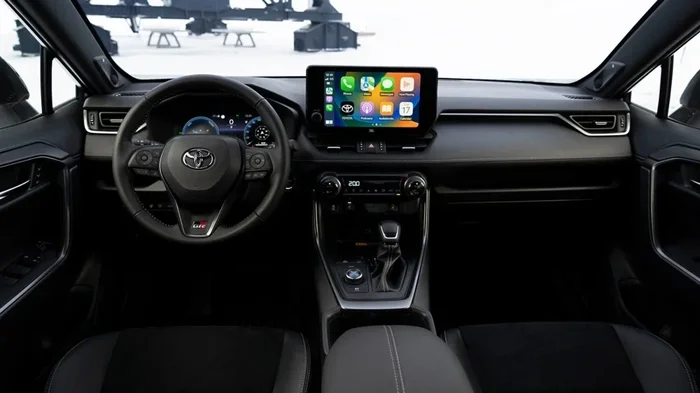
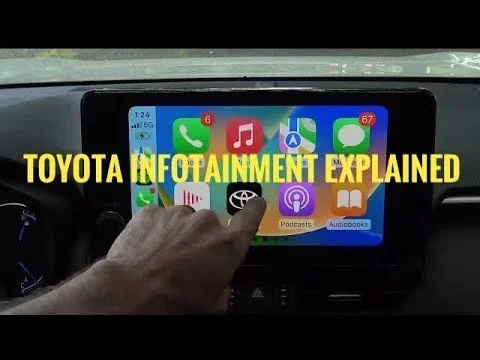
Apple CarPlay and Android Auto are the two biggest names in car phone integration. They let you mirror your smartphone on your Toyota screen. This means you get access to all your phone apps right on the dashboard.
Apple CarPlay works with iPhones. It gives you access to Maps, Messages, Music, and many third-party apps. Android Auto does the same for Android phones. Both systems support popular apps like Spotify, Pandora, Google Maps, and Waze.
Not all Toyotas support both systems. Newer models from 2018 onward usually have wireless support. Older models might need a USB cable. You can check your Toyota manual or visit a dealership to confirm compatibility.
How to Add Apps to Your Toyota Step by Step
Now that you know your system, let us get into the actual steps. Adding apps to your Toyota depends on the method you use. Here are the most common ways.
Method 1: Using Apple CarPlay
If you have an iPhone, Apple CarPlay is your best friend. Here is how to set it up:
- Connect your iPhone to your Toyota using a USB cable or wirelessly if supported.
- Tap the CarPlay icon on your Toyota screen. It usually looks like a smartphone symbol.
- Go to Settings on your iPhone and select General, then CarPlay.
- Choose your Toyota from the list of available vehicles.
- Open the App Store on your iPhone and download any compatible apps.
- Access your apps on the Toyota screen through the CarPlay interface.
Once connected, your favorite apps appear right on the dashboard. You can use voice commands through Siri to keep your hands on the wheel. This is one of the easiest ways to upgrade your Toyota app experience.
Method 2: Using Android Auto
For Android users, the process is very similar:
- Download Android Auto from the Google Play Store on your phone.
- Connect your phone to your Toyota via USB or wirelessly.
- Open Android Auto on your phone and follow the setup prompts.
- Allow permissions for the apps you want to use on the car screen.
- Access apps directly from your Toyota infotainment display.
Android Auto supports a wide range of apps. Spotify, Google Maps, WhatsApp, and podcasts are all compatible. The interface is designed to be driver-friendly, with large buttons and simple menus. Toyota phone integration through Android Auto makes navigation and music effortless.
Method 3: Using Toyota Entune App Suite
Toyota Entune comes with its own set of built-in apps. These include services like weather, traffic, and news. Here is how to access them:
- Press the Home button on your Toyota touch screen.
- Navigate to the Entune section in the main menu.
- Browse available apps like Weather, Sports, and News.
- Select an app to open and use it directly on your screen.
Some Entune features require a subscription or a connected data plan. You can manage this through the Toyota app on your phone. The Toyota connected services platform lets you control many features remotely.
Method 4: Using the Toyota App on Your Phone
The Toyota app is a powerful tool for managing your vehicle. It connects to your Toyota through Bluetooth or Wi-Fi. You can use it to control climate settings, lock doors, and even start your engine remotely. If you are wondering whether remote start can be added to your Toyota, the Toyota app is often the answer.
The app also helps you manage Toyota infotainment settings. You can check for software updates, adjust connectivity options, and troubleshoot common issues. It is a one-stop shop for keeping your Toyota tech running smoothly.
Popular Apps You Can Add to Your Toyota
Not all apps work the same way on every system. Here are the most popular and reliable apps you can add to your Toyota.
Navigation Apps
- Google Maps (Android Auto and Apple CarPlay)
- Waze (Android Auto and Apple CarPlay)
- Apple Maps (Apple CarPlay only)
- Toyota Navigation (built-in Entune feature)
Navigation apps are a game changer. They give you real-time traffic updates and rerouting. If you are wondering why your check engine light is on, that is a separate issue. But for daily driving, a good navigation app on your Toyota screen makes every trip easier.
Music and Streaming Apps
- Spotify (Android Auto and Apple CarPlay)
- Pandora (Android Auto and Apple CarPlay)
- Apple Music (Apple CarPlay)
- Amazon Music (Android Auto and Apple CarPlay)
- Podcast apps (Android Auto and Apple CarPlay)
Streaming music through your Toyota speakers sounds much better than phone speakers. You can control volume, skip tracks, and create playlists right from the dashboard. This is one of the most satisfying upgrades you can make to your Toyota multimedia system.
Communication and Messaging Apps
- WhatsApp (Android Auto)
- iMessage (Apple CarPlay)
- Google Assistant (Android Auto)
- Siri (Apple CarPlay)
These apps let you send and receive messages hands-free. Voice commands do all the work, so you keep your eyes on the road. Safety always comes first when using Toyota phone integration.
Troubleshooting Common App Issues
Sometimes things do not go as planned. Here are the most common problems and how to fix them.
Apps Not Showing Up on the Screen
If your apps are not appearing, the first thing to check is your connection. Make sure your phone is properly paired via Bluetooth or USB. Try disconnecting and reconnecting. Restarting both your phone and your Toyota infotainment system often solves this problem.
Also, check for Toyota software updates. Older firmware versions may not support the latest apps. You can find update instructions in your Toyota manual or through the Toyota app.
Apps Crashing or Freezing
App crashes usually happen for a few reasons:
- Outdated app version on your phone
- Low phone storage affecting performance
- Old Toyota infotainment software
- Bluetooth connection issues
Update your apps through your phone’s app store. Clear the cache on your phone if needed. A Toyota software update can also resolve compatibility issues with newer apps.
Poor Audio Quality
If your music sounds bad, check the connection type. USB connections generally provide better audio than Bluetooth. If you are using Bluetooth, make sure there are no obstructions between your phone and the car. Toyota Bluetooth apps work best when the signal is strong and stable.
Tips to Get the Most Out of Your Toyota Apps
Want to really level up your Toyota experience? Here are some expert tips that make a big difference.
Keep Your Software Updated
Toyota regularly releases infotainment updates. These updates add new features, fix bugs, and improve app compatibility. Check for updates at least once a month. You can do this through the Toyota app or at your local dealership.
Use Voice Commands
Voice commands are the safest way to interact with apps while driving. Both Siri and Google Assistant work through CarPlay and Android Auto. You can say “Call Mom,” “Play my workout playlist,” or “Navigate home” without touching your screen.
Organize Your Apps
Too many apps on your screen can be distracting. Keep only the ones you use most. Arrange them in a logical order so you can find them quickly. Most systems let you customize the home screen layout.
Explore Wireless Connectivity
If your Toyota supports wireless CarPlay or Android Auto, use it. It is more convenient than dealing with cables every day. Wireless connectivity also means your phone charges while connected. If you are curious about other smart features, you might enjoy learning how to unlock your Toyota with your phone for even more seamless integration.
Consider Aftermarket Solutions
If your Toyota is older and does not support modern app integration, aftermarket head units are a great option. These replace your factory stereo and add modern features like wireless CarPlay, Android Auto, and even backup cameras. Installation is straightforward, and many shops offer affordable options.
For those interested in other Toyota upgrades, you might want to check out how to roll down your Toyota windows with the key fob for additional convenience features.
Comparison: Toyota App Methods at a Glance
| Method | Best For | Compatibility | Setup Difficulty |
|---|---|---|---|
| Apple CarPlay | iPhone users | 2016+ Toyotas (varies) | Easy |
| Android Auto | Android users | 2017+ Toyotas (varies) | Easy |
| Toyota Entune | Built-in features | 2012+ Toyotas | Moderate |
| Toyota App | Remote features | Most connected Toyotas | Easy |
| Aftermarket Head Unit | Older Toyotas | All models | Moderate |
Each method has its strengths. Apple CarPlay and Android Auto offer the widest app selection. Entune provides built-in services without needing a phone. The Toyota app adds remote control features that go beyond just apps. Choose the method that fits your needs best.
Expert Insights on Toyota App Integration
According to Toyota tech experts, keeping your system updated is the single most important thing you can do. Newer software versions unlock better app support and smoother performance. Many owners do not realize that a simple update can add entirely new features to their Toyota.
Another expert tip is to use a high-quality USB cable. Cheap cables cause connection drops and poor audio quality. A braided USB cable lasts longer and provides a more stable connection for your Toyota infotainment system.
Experts also recommend restarting your Toyota infotainment system once a month. This clears the cache and keeps everything running smoothly. It is like restarting your phone, and it really does help with app performance.
If you are exploring more ways to enhance your Toyota, you might also be interested in driving your Toyota without the key fob for added convenience and modern tech features.
Common Mistakes to Avoid When Adding Apps
Avoid these common mistakes to keep your Toyota app experience smooth:
- Skipping software updates – This is the number one cause of app compatibility issues.
- Using low-quality cables – They cause connection drops and audio problems.
- Overloading your screen – Too many apps make the interface confusing and distracting.
- Ignoring phone storage – A full phone slows down app performance on CarPlay and Android Auto.
- Not checking compatibility – Not all apps work on all systems. Always verify before downloading.
Frequently Asked Questions
Can I add apps to any Toyota model?
Most Toyotas from 2016 onward support Apple CarPlay or Android Auto. Older models may use Toyota Entune with limited app access. Check your specific model and year for compatibility. Aftermarket head units can add app support to almost any Toyota.
Do I need a subscription to use apps on my Toyota?
Most apps like Spotify and Google Maps do not require a Toyota subscription. However, some Toyota Entune features and connected services may need a paid plan. Check with your dealer for details on your specific package.
Can I use both Apple CarPlay and Android Auto on the same Toyota?
This depends on your Toyota model and year. Many newer Toyotas support both systems. Some only support one. Check your manual or ask your dealer to confirm what your specific model supports.
How do I update apps on my Toyota screen?
Apps on CarPlay and Android Auto update through your phone’s app store. Make sure your phone is connected and has the latest versions. Toyota infotainment software updates are done separately through the Toyota app or at a dealership.
Can I add apps to my Toyota without a smartphone?
Built-in Entune apps work without a phone for some features like weather and traffic. However, most third-party apps require a smartphone connection. If you want full app functionality, a smartphone is necessary.
Will adding apps slow down my Toyota infotainment system?
Generally no. Modern Toyota systems handle apps well. However, having too many apps open at once can slow things down. Keep your system updated and restart it periodically for the best performance.
Conclusion
Adding apps to your Toyota is one of the best ways to upgrade your daily driving experience. Whether you choose Apple CarPlay, Android Auto, or the Toyota Entune system, the process is straightforward and rewarding. You get access to navigation, music, messaging, and so much more right on your dashboard.
Start by identifying which method works best for your phone and Toyota model. Follow the setup steps we outlined, and do not be afraid to experiment with different apps. Keep your software updated and your connections clean for the smoothest experience possible.
Remember, technology should make your life easier, not harder. With the right apps and a little patience, your Toyota becomes a smarter, more connected vehicle. Take some time today to explore what your Toyota infotainment system can do. Your future self will thank you every time you hit the road.