Does Toyota Support Bluetooth CarPlay On Your Phone
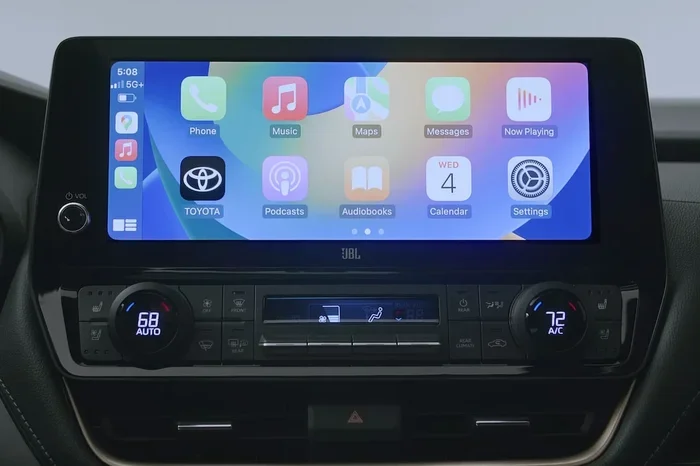
Yes, Toyota supports Bluetooth CarPlay on most models built after 2019. Whether you drive a Toyota Camry, RAV4, or Highlander, you can connect your iPhone for navigation, music, and hands-free calling. Bluetooth CarPlay works wirelessly on newer Toyotas, while older models may need a USB cable.
Toyota has made big strides in smartphone connectivity over the past few years. If you own an iPhone and drive a Toyota, you have probably wondered whether your truck or SUV supports Bluetooth CarPlay. The short answer is yes, but the details matter.
Not every Toyota model handles CarPlay the same way. Some Toyotas give you wireless freedom, while others require a cable. And the year of your vehicle plays a huge role in what features you get. In this guide, we will walk through everything you need to know about Toyota CarPlay support, from setup to troubleshooting.
Whether you just bought a new Toyota or have been driving one for years, this article will help you get the most out of your phone-to-car connection. Let us dive in.
Key Takeaways
- Broad Compatibility: Most Toyota models from 2019 onward support Apple CarPlay over Bluetooth.
- Wireless and Wired Options: Newer Toyotas offer wireless CarPlay, while older models use a USB connection.
- Easy Setup: Connecting your iPhone takes just a few simple steps.
- Troubleshooting Is Straightforward: Most CarPlay issues can be fixed with a quick reset or update.
- Beyond CarPlay: Toyota offers additional smartphone features like app integration and remote access.
📑 Table of Contents
- What Is Bluetooth CarPlay and Why Does It Matter?
- Which Toyota Models Support CarPlay?
- How to Set Up Apple CarPlay on Your Toyota
- Wireless vs Wired CarPlay in Toyota Vehicles
- Common CarPlay Issues and How to Fix Them
- Toyota’s Smartphone Integration Beyond CarPlay
- Tips to Get the Best CarPlay Experience in Your Toyota
- Can You Get CarPlay on Older Toyota Models?
- Final Thoughts
What Is Bluetooth CarPlay and Why Does It Matter?
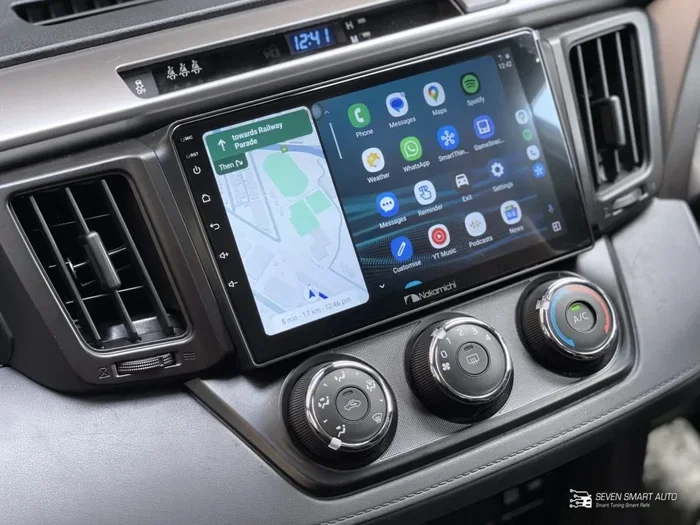
Apple CarPlay is a feature that mirrors your iPhone onto your car’s touchscreen. It lets you use maps, make calls, send messages, and stream music without taking your eyes off the road. Bluetooth CarPlay specifically refers to the wireless version of this connection.
Before CarPlay, drivers had to rely on basic Bluetooth for calls and music. CarPlay changed the game by offering a full smartphone experience right on the dashboard. Toyota recognized this early and began rolling out CarPlay compatibility across its lineup.
Here is why Bluetooth CarPlay matters for Toyota owners:
- Hands-Free Navigation: You can use Google Maps or Apple Maps without holding your phone.
- Siri Voice Commands: Send texts or make calls using just your voice.
- Music Streaming: Access Spotify, Apple Music, and Podcasts directly through your car’s speakers.
- Safety: Keep your eyes on the road and hands on the wheel.
- Seamless Integration: Your iPhone pairs automatically when you get in the car.
Toyota understood that drivers wanted more than just a radio. They wanted a smart, connected experience. That is exactly what Bluetooth CarPlay delivers.
Which Toyota Models Support CarPlay?
Most modern Toyota vehicles come with Apple CarPlay built in. But the specific features depend on your model and the model year. Here is a breakdown of Toyota models that support Bluetooth CarPlay:
Toyota Camry
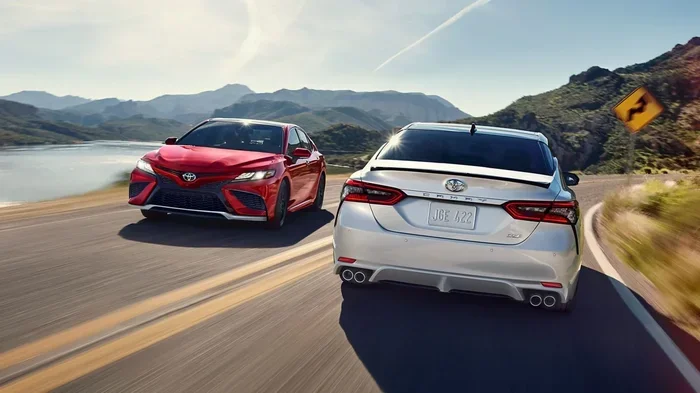
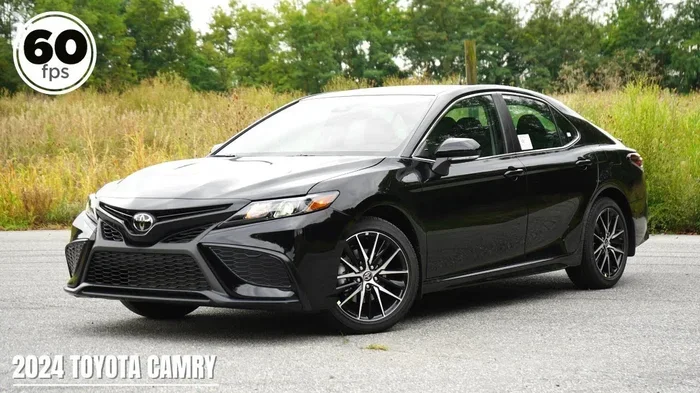
The Toyota Camry has supported Apple CarPlay since around 2019. If you own a Camry from 2019 or newer, you should have access to wireless or wired CarPlay depending on your trim level. The Camry’s infotainment system is one of the smoother ones in Toyota’s lineup, making CarPlay connectivity a breeze.
Toyota RAV4
The RAV4 is one of Toyota’s best-selling SUVs, and it fully supports Bluetooth CarPlay. Models from 2019 onward offer wireless CarPlay on higher trims. The RAV4’s large touchscreen makes navigating with CarPlay easy and enjoyable.
Toyota Highlander
The Highlander also supports Apple CarPlay on models from 2020 and newer. This three-row SUV is popular with families, and CarPlay integration helps everyone stay connected on long road trips.
Toyota Corolla
The Corolla joined the CarPlay compatible Toyota family starting with the 2020 model year. Even the base trims now offer smartphone integration, which is a big upgrade from earlier versions.
Other Toyota Models with CarPlay
Many other Toyota vehicles also support Bluetooth CarPlay. This includes the Toyota Tacoma, Toyota Tundra, Toyota Sienna, Toyota Avalon, and Toyota 4Runner. If you are unsure about your specific model, check your owner’s manual or ask your Toyota dealer.
One thing to keep in mind: older Toyotas from before 2018 may not support CarPlay at all. If you have a 2015 or 2016 model, you might need an aftermarket adapter to get CarPlay functionality.
How to Set Up Apple CarPlay on Your Toyota
Setting up Bluetooth CarPlay on your Toyota is simple. Here is a step-by-step guide that works for most Toyota models:
Step 1: Make Sure Your iPhone Is Updated
Before you do anything, update your iPhone to the latest iOS version. CarPlay compatibility depends on having the right software. Go to Settings, then General, then Software Update.
Step 2: Turn on Bluetooth and Wi-Fi
Wireless CarPlay needs both Bluetooth and Wi-Fi turned on. You do not need to connect to a specific Wi-Fi network, but Wi-Fi must be enabled for the wireless handshake to work.
Step 3: Connect via USB (For First-Time Setup)
Plug your iPhone into the Toyota’s USB port using a Lightning cable. A prompt should appear on the car’s screen asking if you want to enable CarPlay. Tap “Yes” or “Allow.”
Step 4: Switch to Wireless (If Supported)
Once you have connected via USB, your Toyota should offer the option to switch to wireless CarPlay. Go to your car’s settings, find the Bluetooth or CarPlay menu, and select “Wireless.” Your iPhone will remember the connection.
Step 5: Test Your Connection
Start the car and see if CarPlay appears automatically on the touchscreen. If it does, you are all set. If not, try disconnecting and reconnecting your phone.
Quick Tip: If your Toyota does not support wireless CarPlay, you can always use a USB cable. It is not as convenient, but it works just as well for navigation and music.
Wireless vs Wired CarPlay in Toyota Vehicles
Toyota offers both wireless and wired CarPlay depending on your model and year. Here is a comparison to help you understand the differences:
| Feature | Wireless CarPlay | Wired CarPlay |
|---|---|---|
| Connection Type | Bluetooth and Wi-Fi | USB Cable |
| Convenience | No cables needed | Must plug in cable |
| Availability | 2020+ Toyota models | Most CarPlay-compatible Toyotas |
| Audio Quality | Good | Slightly better |
| Setup Complexity | Simple after first connection | Simple every time |
| Battery Impact | Minimal | Phone charges while connected |
Wireless CarPlay is the more convenient option. You get in the car, and your Toyota connects automatically. There is no fumbling with cables. Most 2020 and newer Toyotas come with wireless Apple CarPlay as standard or optional.
Wired CarPlay is still a solid choice. It provides a stable connection and charges your phone at the same time. If you have an older Toyota or a model that does not support wireless, a USB cable is your best bet.
Some Toyota owners ask whether Bluetooth CarPlay uses a lot of battery. The answer is no. Wireless CarPlay is designed to be efficient, and your iPhone battery should last a normal day of driving without any issues.
Common CarPlay Issues and How to Fix Them
Even though Toyota CarPlay is generally reliable, you may run into problems from time to time. Here are the most common issues and how to solve them:
CarPlay Does Not Appear on the Screen
This is the most common complaint. If CarPlay does not show up, try these steps:
- Make sure Bluetooth is turned on in your iPhone settings.
- Restart your Toyota’s infotainment system by holding the power button for 10 seconds.
- Try a different USB cable or port.
- Turn Bluetooth off and back on in your iPhone.
Audio Cuts Out or Sounds Scratchy
If your Bluetooth CarPlay audio is choppy, check that nothing else is connected to your car’s audio system. Sometimes a separate Bluetooth device can interfere with CarPlay connectivity.
Siri Does Not Respond
Make sure “Hey Siri” is enabled on your iPhone. Go to Settings, then Siri & Search, and turn on “Listen for Hey Siri.” This allows you to use voice commands even when your phone is locked.
Maps Do Not Load Properly
Make sure you have a strong Wi-Fi or cellular connection. CarPlay maps need data to load directions. If you are in a dead zone, maps may not work properly.
CarPlay Disconnects Randomly
Random disconnections are often caused by software glitches. Try forgetting the Bluetooth CarPlay connection on both your phone and your car, then pair them again from scratch.
Expert Insight: If none of the above fixes work, try resetting all settings on your iPhone. Go to Settings, then General, then Reset, and tap “Reset All Settings.” This will not delete your data but can fix stubborn connectivity issues.
Toyota’s Smartphone Integration Beyond CarPlay
Bluetooth CarPlay is not the only way Toyota connects your phone to your vehicle. Toyota has built a range of smartphone integration features that work alongside CarPlay:
Toyota App Connect
Toyota’s own app suite lets you control certain features remotely. You can check your vehicle’s status, set reminders, and even start the engine from your phone. While not the same as CarPlay, it adds another layer of convenience.
Remote Connect Features
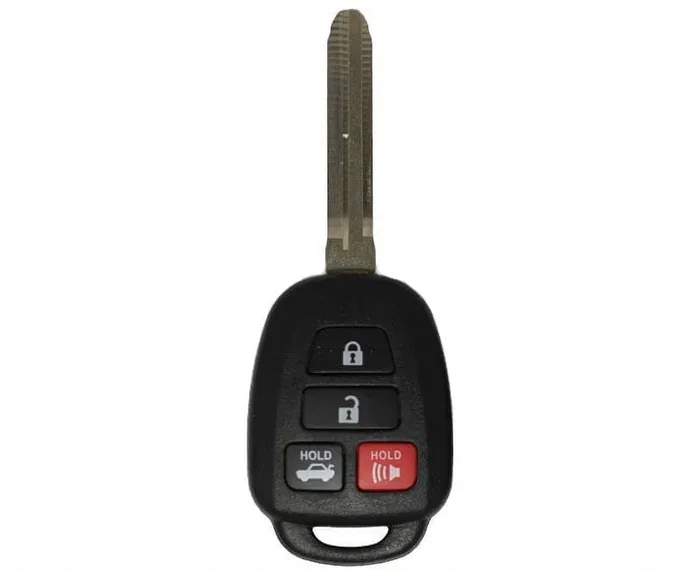
Some Toyota models allow you to unlock your Toyota with your phone using the Toyota app. This is a great feature for when your keys are buried in a bag or pocket. You can also check tire pressure, fuel levels, and more right from your smartphone.
Multiple Users and the Toyota App
Toyota’s app supports multiple users on the same vehicle. Can two people use the Toyota app for one car? Yes, they can. This is helpful for families who share a vehicle and each want to track their own trips and settings.
Vehicle Tracking and Security
Toyota offers tracking features that can help you locate your vehicle if it is ever stolen. Can Toyota track my car if stolen? Yes, with the right Toyota Connected Services package, you can use the app to locate your car in real time.
These features work hand in hand with Bluetooth CarPlay to create a fully connected driving experience. Toyota has clearly invested in making its vehicles smarter and more user-friendly.
Tips to Get the Best CarPlay Experience in Your Toyota
Want to make the most of Bluetooth CarPlay in your Toyota? Here are some practical tips:
- Use a High-Quality USB Cable: If you go wired, a good cable makes all the difference. Cheap cables can cause connection drops and slow charging.
- Keep Your iPhone Clean: Dust in the Lightning port can cause connection problems. A quick wipe with a dry cloth can fix many issues.
- Update Your Toyota’s Software: Toyota releases infotainment updates that improve CarPlay compatibility. Check with your dealer for the latest updates.
- Organize Your CarPlay Apps: You can customize which apps appear on CarPlay. Put your most-used apps like Maps and Music front and center.
- Use Siri for Safety: Instead of tapping your screen while driving, use Siri voice commands to change music or get directions.
- Restart Weekly: A simple restart of your Toyota’s infotainment system once a week keeps things running smoothly.
These small habits can make a big difference in how smoothly Toyota CarPlay works every day.
Can You Get CarPlay on Older Toyota Models?
If you drive a Toyota from before 2019, you might be wondering if you can still get Bluetooth CarPlay. The good news is that you have options.
Aftermarket CarPlay adapters are available that work with older Toyota infotainment systems. These adapters plug into your car’s existing setup and add CarPlay functionality wirelessly or through a USB connection. Popular brands include Axxess, AAJT, and AutoAgent.
The cost of an aftermarket adapter varies, but most range from $200 to $500. It is not cheap, but for Toyota owners who love their older models, it is a great way to add modern connectivity without buying a new car.
Before buying an adapter, check if your Toyota’s head unit supports the necessary inputs. Some older Toyotas use different connectors, and compatibility can vary. You may want to consult a Toyota specialist or your local dealer for advice.
Final Thoughts
Does Toyota support Bluetooth CarPlay? Absolutely. Most Toyota models from 2019 onward come with full Apple CarPlay support, and many newer Toyotas offer wireless connectivity. Whether you drive a Camry, RAV4, Highlander, or Corolla, you can expect a seamless phone-to-car connection.
Setting up Toyota CarPlay is straightforward, and troubleshooting common issues is usually quick and easy. Toyota has done a great job of keeping its infotainment systems modern and user-friendly.
Beyond CarPlay, Toyota offers a suite of smartphone features that make driving more convenient and connected. From remote unlocking to vehicle tracking, Toyota has thought about the whole driver experience.
If you have not tried Bluetooth CarPlay in your Toyota yet, now is the perfect time. Pull out your iPhone, follow the steps in this guide, and enjoy a smarter, safer driving experience.
Frequently Asked Questions
Can I use Bluetooth CarPlay in all Toyota models?
Most Toyota models from 2019 onward support Bluetooth CarPlay. Older models may need an aftermarket adapter or may not support CarPlay at all. Check your specific model and year to confirm compatibility.
Is wireless CarPlay available on Toyota vehicles?
Yes, many Toyota models from 2020 onward offer wireless Apple CarPlay. This allows you to connect your iPhone without any cables. Higher trims are more likely to include this feature.
Why does my Toyota CarPlay keep disconnecting?
CarPlay disconnections are often caused by software glitches or outdated firmware. Try restarting both your iPhone and your Toyota’s infotainment system. You can also try forgetting the Bluetooth connection and pairing again.
Can I use Android Auto instead of CarPlay in my Toyota?
Toyota supports Android Auto on many models as well. However, some Toyotas only offer Apple CarPlay and not Android Auto. Check your specific model to see which platforms are supported.
Do I need a special cable for Toyota CarPlay?
For wired CarPlay, you need a Lightning cable that supports data transfer. Not all USB cables work for CarPlay. Apple’s official Lightning cable or a certified MFi cable is recommended for the best experience.
Can I use CarPlay and charge my phone at the same time?
Yes, when you connect via USB for wired CarPlay, your iPhone charges at the same time. With wireless CarPlay, your phone charges at a slower rate, but it should still maintain your battery level during normal driving.
=== CONCLUSION ===
Toyota Bluetooth CarPlay is a fantastic feature that makes driving safer and more connected. Most modern Toyotas support Apple CarPlay, and the setup process is simple and user-friendly. Whether you choose wireless or wired, you will enjoy seamless navigation, music, and hands-free communication right from your dashboard.
If you run into any issues, the troubleshooting tips in this guide should help you get back on track quickly. And if you have an older Toyota, do not worry, aftermarket adapters can bring CarPlay functionality to almost any model.
Take a few minutes today to connect your iPhone to your Toyota. You will wonder how you ever drove without it.