How Do I Change Settings on My RAV4 Toyota Vehicle
Changing settings on your RAV4 Toyota vehicle is simple once you know where to look. This guide walks you through every major setting category, from display brightness to navigation preferences. You will learn how to customize your infotainment system, adjust driver profiles, pair your phone, and tweak safety features. Whether you own a 2020, 2022, or 2024 RAV4, these tips will help you get the most out of your Toyota.
Your Toyota RAV4 comes packed with features and settings that can make every drive more comfortable and safer. But if you have never dug into the settings menu, you might be missing out on some really useful customizations. The good news is that changing settings on your RAV4 Toyota vehicle is straightforward and does not require any special tools or technical skills.
In this guide, we will walk you through every major category of settings available on the RAV4. From adjusting your display brightness to pairing your phone, from tweaking navigation preferences to setting up driver profiles, we have you covered. Each section includes clear steps and practical tips that anyone can follow.
Whether you just bought a new RAV4 or have been driving one for years, there is always something new to discover. Let us dive in and help you get your RAV4 set up exactly the way you want it.
Key Takeaways
- Display Settings Are Easy to Access: You can adjust brightness, font size, and theme directly from the RAV4 settings menu.
- Navigation Voice Can Be Changed: You can change the voice on Toyota navigation to suit your preferences.
- Phone Pairing Takes Minutes: Bluetooth setup and wireless charging preferences are all customizable from the RAV4 home screen.
- Driver Profiles Save Your Preferences: Multiple driver profiles let each person store their own seat, mirror, and audio settings.
- Safety Settings Can Be Fine-Tuned: Traction control, lane departure warnings, and other safety features are adjustable through the vehicle settings.
📑 Table of Contents
Understanding the RAV4 Settings Menu
The RAV4 settings menu is your gateway to customizing the vehicle. It lives on the central touchscreen display, and you can access it from the home screen. The layout is clean and organized, which makes it easy to find what you need.
When you tap the Settings icon on the home screen, you will see several main categories. These typically include Display, Audio, Navigation, Phone, Vehicle, and Safety. Each category contains sub-menus with specific options you can adjust.
Where to Find the Settings Icon
On most RAV4 models, the Settings icon looks like a gear or a wrench symbol. You will find it on the bottom dock of the home screen. If you do not see it, try swiping left or right through the app tray. On newer models with the larger touchscreen, the icon is more prominent and easier to locate.
Once you tap Settings, you will see a sidebar or a list of categories on the left side of the screen. Tapping any category expands it to show the available options. This design makes it simple to browse and adjust settings without getting lost.
What You Can Customize
The RAV4 settings menu covers a wide range of features. Here are the main areas you can customize:
- Display Settings: Brightness, theme, font size, and screen timeout.
- Audio Settings: Volume levels, equalizer, balance, and fade controls.
- Navigation Settings: Map view, voice guidance, route preferences, and map data.
- Phone Settings: Bluetooth pairing, wireless charging, and contact sync.
- Vehicle Settings: Driving modes, traction control, and warning preferences.
- Safety Settings: Lane departure alerts, pre-collision warnings, and blind spot monitoring.
Each of these categories plays an important role in how your RAV4 feels and functions on a daily basis. Taking a few minutes to explore them can make a big difference in your driving experience.
How to Change Display and Screen Settings on Your RAV4
The display is the centerpiece of the RAV4 infotainment system. Adjusting the screen settings can improve readability, reduce glare, and make the interface more comfortable to use during long drives.
Adjusting Screen Brightness
Screen brightness is one of the most commonly adjusted settings. During the day, a brighter screen helps you see the display clearly in sunlight. At night, dimming the screen reduces glare and prevents eye strain.
To adjust brightness, go to Settings and tap Display. You will see a brightness slider. Drag it left to dim the screen or right to make it brighter. Some RAV4 models also have an automatic brightness option that adjusts the screen based on ambient light conditions.
Changing the Display Theme
Toyota offers different display themes for the RAV4. You can typically choose between a light theme and a dark theme. The dark theme is easier on the eyes at night, while the light theme can feel more vibrant during daytime driving.
To change the theme, navigate to Settings, then Display, and look for Theme or Appearance. Select your preferred option and the screen will update immediately. This small change can make a big difference in how the interface feels.
Font Size and Screen Timeout
If the text on your screen feels too small or too large, you can adjust the font size. This option is found under the Display settings menu. Larger fonts can be helpful for older drivers or anyone who prefers a cleaner, more readable interface.
Screen timeout controls how long the display stays on when the vehicle is idle. A shorter timeout saves battery power, while a longer timeout keeps the screen available for passenger use. You can set this in the Display menu under Screen Timeout or Sleep Timer.
Adjusting Audio and Navigation Settings
Audio and navigation are two of the most-used features in any RAV4. Customizing these settings ensures you get the best sound quality and the most helpful guidance on every trip.
Fine-Tuning Your Audio Experience
The RAV4 audio system lets you adjust more than just the volume. You can tweak the equalizer settings to tailor the sound to your music preferences. Whether you love deep bass or crisp highs, the equalizer gives you control over the sound profile.
You can also adjust the balance and fade controls. Balance shifts the sound between the left and right speakers, while fade moves the sound between the front and rear of the cabin. These adjustments are especially useful when you have passengers in the back seat.
To access audio settings, tap the Audio or Sound icon on the home screen. Look for the Settings or Preferences gear icon within the audio menu. From there, you can explore equalizer presets or create a custom sound profile.
Setting Up Navigation Preferences
The RAV4 navigation system offers several settings that can improve your driving experience. You can choose your preferred map view, set default route types, and adjust voice guidance volume.
One popular customization is changing the voice guidance. If you want to change the voice on Toyota navigation, you can do so from the Navigation settings menu. Look for Voice Settings or Voice Guidance. You may have the option to choose between different voice types or adjust the speaking speed.
Other useful navigation settings include:
- Route Preferences: Choose between fastest route, shortest route, or avoid highways.
- Map Orientation: Switch between north-up and heading-up map views.
- Traffic Data: Enable or disable real-time traffic updates.
- Map Scale: Adjust how zoomed in or out the map appears.
Taking the time to set these preferences once can save you frustration every time you use the navigation system.
Customizing Driver and Safety Settings
Your RAV4 has several settings that affect how the vehicle drives and how it keeps you safe. These settings can be personalized to match your driving style and comfort level.
Driver Profiles and Seat Memory
If your RAV4 supports driver profiles, this is a game-changer. A driver profile saves your seat position, mirror adjustments, audio preferences, and even climate settings. When you switch profiles, the vehicle adjusts everything automatically.
To set up a driver profile, go to Settings and look for Driver Profiles or User Profiles. You can create a profile for yourself and assign it to a key fob. This means that when you drive the RAV4, it recognizes your key and loads your personal settings.
Here is how to set up a driver profile:
- Go to Settings and select Driver Profiles.
- Tap Create New Profile or Add User.
- Assign a name or key fob to the profile.
- Adjust your seat, mirrors, audio, and climate settings.
- Save the profile.
Now every time you get in the RAV4 with that key fob, your settings load automatically. This feature is especially helpful in households with multiple drivers.
Adjusting Safety and Warning Preferences
The RAV4 comes with a suite of advanced safety features. You can customize how these features behave to match your comfort level. For example, you can adjust the sensitivity of lane departure warnings or change how often you receive pre-collision alerts.
To access safety settings, go to Settings and tap Vehicle or Safety. You will find options for:
- Lane Departure Alert: Turn it on or off, or adjust the warning sensitivity.
- Pre-Collision System: Enable or disable alerts and automatic braking.
- Blind Spot Monitoring: Adjust warning settings for blind spot detection.
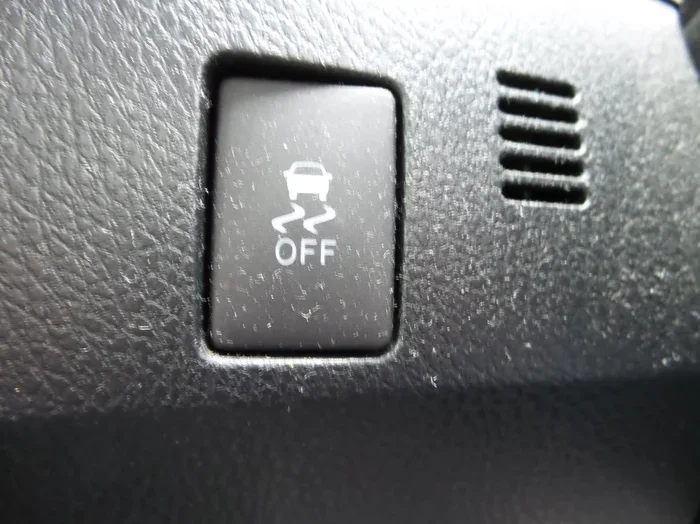
- Traction Control: Modify traction control behavior for different road conditions.
Keep in mind that some safety features cannot be fully disabled due to regulatory requirements. However, you can usually adjust how they alert you or how sensitive they are.
Phone and Connectivity Settings
Staying connected while driving is important for most people. The RAV4 offers several connectivity options that you can customize to fit your lifestyle.
Pairing Your Phone via Bluetooth
Bluetooth pairing is the first step to using hands-free calling, audio streaming, and navigation on your RAV4. The process is simple and takes just a few minutes.
Here is how to pair your phone:
- Go to Settings and tap Phone or Bluetooth.
- Select Add New Device or Pair New Phone.
- Make sure Bluetooth is enabled on your phone.
- Select your RAV4 from the list of available devices on your phone.
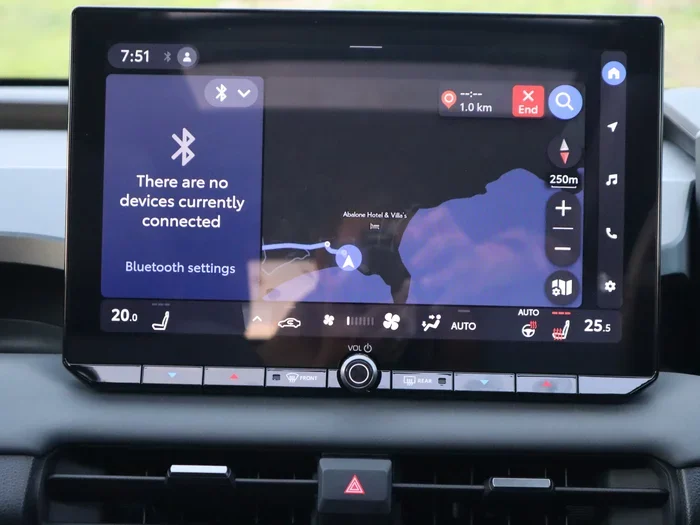
- Follow the on-screen prompts to complete pairing.
Once paired, your phone will automatically connect when you get in the RAV4. You can also adjust which phone features are allowed, such as contacts sync, call audio, and media audio.
If you want to learn more about using your phone with the RAV4, you might also enjoy our guide on starting your RAV4 with your phone.
Wireless Charging and USB Settings
Many RAV4 models come with wireless charging pads or USB ports. You can manage charging preferences in the Phone or Device settings menu. This includes enabling or disabling wireless charging, setting USB power output, and managing connected devices.
For added convenience, you can also set your phone to automatically connect to the RAV4’s audio system when it is placed on the wireless charger. This eliminates the need to manually pair every time you get in the vehicle.
Unlocking Your Toyota With Your Phone
Some RAV4 models support phone-as-a-key functionality. This lets you unlock your Toyota with your phone using Bluetooth or NFC technology. You can manage this feature in the Phone settings or the Vehicle settings menu.
To set up phone-as-a-key, follow the prompts in the vehicle settings. You will need to register your phone with the system and set permissions for locking, unlocking, and starting the vehicle. This is a convenient feature that eliminates the need to carry a physical key fob.
Tips for Optimizing Your RAV4 Settings
Now that you know where to find and how to adjust each setting category, here are some expert tips to help you get the most out of your RAV4.
Quick Tips for Daily Driving
- Use Automatic Brightness: This saves you from manually adjusting the screen every time lighting conditions change.
- Set Default Navigation Home: Save your home address in the navigation system for quick route planning.
- Keep Bluetooth Updated: Regularly update your phone’s Bluetooth settings for the best connection stability.
- Explore Driving Modes: The RAV4 offers Eco, Normal, and Sport modes. Each changes throttle response, steering feel, and climate behavior.
- Review Safety Settings Monthly: Make sure all safety alerts are set to your preferred levels.
Common Mistakes to Avoid
When adjusting RAV4 settings, there are a few common mistakes to watch out for:
- Forgetting to Save Changes: Always tap Save or Confirm after making adjustments, or your changes may not be applied.
- Disabling Safety Features Entirely: Some safety systems cannot be fully turned off, and attempting to do so may trigger warning lights.
- Pairing Too Many Devices: The RAV4 Bluetooth system has a limit on paired devices. Remove old devices you no longer use.
- Ignoring Software Updates: Toyota occasionally releases infotainment updates that add new features and fix bugs. Keep your system updated.
When to Seek Professional Help
Most RAV4 settings can be adjusted on your own using the touchscreen. However, if you encounter issues that persist after a reset, it may be time to visit a Toyota dealership. For example, if your check engine light comes on after adjusting vehicle settings, that could indicate a deeper issue. Similarly, if you are wondering whether you can drive your Toyota Camry with the check engine light on, the same logic applies to the RAV4. Always get persistent warning lights checked by a professional.
Conclusion
Changing settings on your RAV4 Toyota vehicle is one of the best ways to make the car feel truly yours. From display brightness to driver profiles, from audio tuning to safety preferences, every setting plays a role in your daily driving comfort and convenience.
Take the time to explore each category in the settings menu. Experiment with different configurations until you find what works best for you. The RAV4 is designed to be highly customizable, and the more you fine-tune it, the more enjoyable every drive becomes.
Remember, you can always reset settings to default if something does not feel right. And if you ever need help, your local Toyota dealership is just a visit away. Enjoy your RAV4 and happy driving!
Frequently Asked Questions
How do I reset the RAV4 settings to factory defaults?
To reset your RAV4 settings, go to Settings, then look for System Reset or Factory Reset. This will restore all settings to their original factory values. Make sure you note down any custom settings you want to keep before performing a reset.
Can I customize the RAV4 home screen layout?
Yes, many RAV4 models allow you to customize the home screen layout. You can pin your most-used apps and settings for quick access. Go to Settings and look for Home Screen or Display Layout to make changes.
How do I update the RAV4 infotainment software?
Toyota may release software updates for the RAV4 infotainment system. Check for updates by going to Settings, then System, and selecting Software Update. You can also visit a Toyota dealership for professional updates.
Why is my RAV4 screen unresponsive after changing settings?
If the screen becomes unresponsive, try restarting the infotainment system. You can usually do this by holding the power button for a few seconds. If the issue persists, a factory reset may help resolve the problem.
Can I save different audio profiles for different drivers?
Yes, if your RAV4 supports driver profiles, each driver can save their own audio preferences. When a profile is active, the audio settings load automatically for that driver.
How do I turn off the RAV4 navigation voice guidance?
To turn off voice guidance, go to Settings, then Navigation, and look for Voice Guidance or Audio Alerts. Toggle it off to silence the navigation voice during your drive.