How Do I Connect My Car to My Toyota App Simple Steps
Connecting your car to the Toyota App is easy and opens up a world of convenience. This guide walks you through every step, from downloading the app to pairing your vehicle. You will learn how to use key features like remote start, lock/unlock, and vehicle tracking.
Have you ever wanted to control your Toyota right from your phone? The Toyota App makes this possible, and the setup process is simpler than you might think. Whether you own a Toyota Camry, RAV4, or any other model, connecting your vehicle to the app gives you real-time access to your car’s health, location, and comfort features.
In this guide, we will walk you through every step of the process. You will learn how to download the app, pair your car, and use the most useful features. We will also cover common problems and how to fix them. By the end, you will feel confident using your Toyota App like a pro.
The Toyota App is a powerful tool that turns your smartphone into a remote control for your vehicle. It works with most newer Toyota models and offers features that make daily driving more convenient. Let us dive right in and get your car connected.
Key Takeaways
- Easy Setup: Connecting your car to the Toyota App takes just a few minutes with a stable Wi-Fi or Bluetooth connection.
- Remote Features: Once connected, you can lock, unlock, and start your car from your phone.
- Two-Person Access: You can share app access with another person using the same Toyota vehicle.
- Troubleshooting Tips: Simple resets and updates fix most connection problems quickly.
- Keyless Driving: The app works with Toyota’s keyless entry system for added convenience.
- Regular Updates: Keeping your app and car software updated ensures smooth performance.
📑 Table of Contents
What Is the Toyota App and Why Should You Use It?
The Toyota App is a mobile application designed to keep you connected to your vehicle. It works with both Android and iPhone devices and gives you access to a range of features. Think of it as a digital keychain, dashboard, and security system all in one.
Here is what makes the Toyota App so useful:
- Remote Lock and Unlock: Lock or unlock your doors from anywhere.
- Vehicle Tracking: Find your car if you forget where you parked.
- Remote Start: Warm up or cool down your car before you get in.
- Maintenance Alerts: Get notified about service needs and low fuel.
- Driving Insights: Track your fuel economy and driving habits.
Using the Toyota App means you spend less time worrying about your car and more time enjoying it. The app also sends push notifications straight to your phone, so you never miss an important alert. It is one of the easiest ways to stay on top of your vehicle’s health.
Who Can Use the Toyota App?
Most Toyota owners with a 2017 model year or newer can use the app. However, some older models may have limited functionality. You will need a compatible smartphone and a Toyota connected services subscription. The app is free to download, but some features require a paid plan.
Another great thing about the Toyota App is that you can share access. If you have a family member or partner who also drives the same car, they can connect to the app too. This is especially helpful for households with more than one driver.
How to Download and Install the Toyota App
Before you can connect your car, you need to have the app on your phone. The process is quick and straightforward. Follow these steps to get started.
Step 1: Find the App in Your App Store
Open the Apple App Store or Google Play Store on your phone. Search for “Toyota App” or “Toyota MyT.” The official app is published by Toyota Motor Corporation. Make sure you download the correct one and not a copycat app. Check the developer name and read the reviews to confirm authenticity.
Step 2: Create Your Toyota Account
Once the app is installed, open it and tap “Create Account.” You will need to provide your name, email address, and a strong password. After that, you will need to enter your Toyota vehicle details. This includes your VIN (Vehicle Identification Number), which you can find on your dashboard or driver’s side door frame.
Having your VIN ready makes the setup much faster. It links your account directly to your specific vehicle. This is an important step because the app uses your VIN to pull up your car’s features and settings.
Step 3: Verify Your Email
Toyota will send a verification email to the address you provided. Open your inbox, find the email, and click the verification link. This confirms your identity and activates your account. Without this step, you will not be able to log in or use any features.
How to Connect Your Car to the Toyota App
This is the most important part of the entire process. Connecting your car to the Toyota App requires a few simple steps. Make sure your phone and car are close to each other during setup.
Step 1: Turn on Bluetooth or Wi-Fi
First, make sure Bluetooth is turned on in your phone settings. Some Toyota models also support Wi-Fi pairing for a stronger connection. Go to your phone’s settings and enable the wireless connection you plan to use. A stable connection is essential for smooth communication between your phone and car.
Step 2: Open the Toyota App and Select “Add Vehicle”
Launch the Toyota App on your phone. You will see a menu option that says “Add Vehicle” or “Pair New Car.” Tap on it. The app will start searching for nearby Toyota vehicles that are ready to be paired.
Make sure your car is in park and the engine is off during this step. Some models require you to press the power button once to activate the Bluetooth module. Your car should appear on the app screen within a few seconds.
Step 3: Confirm the Pairing Code
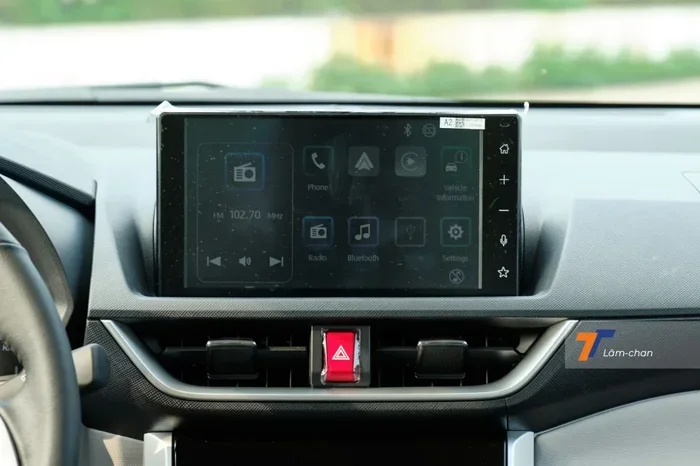
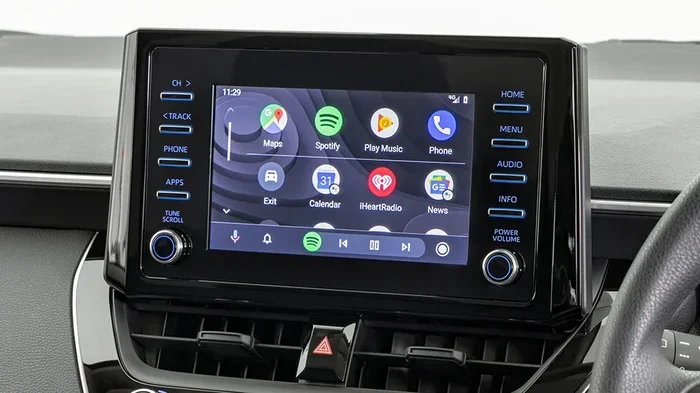
The app will display a pairing code on your phone screen. You will need to enter this same code into your car’s infotainment system. Look for the Bluetooth settings menu on your car’s touchscreen. Type in the code exactly as shown. Once the codes match, the pairing is complete.
If you are unsure where to find the Bluetooth settings in your car, check your owner’s manual. Most Toyota models place this under “Settings” then “Bluetooth” or “Phone Connection.”
Step 4: Test the Connection
After pairing, try a simple test. Use the app to lock or unlock your car doors. If the command works, your connection is successful. You can also try checking your fuel level or starting the engine remotely (if your model supports it).
Once your car is connected, you can also unlock your Toyota with your phone using the app. This is one of the most popular features and works seamlessly after a successful pairing.
Key Features You Can Access After Connecting
Now that your car is connected, let us explore the features you can use. The Toyota App offers a wide range of tools that make car ownership easier and more enjoyable.
Remote Start and Climate Control
One of the best features of the Toyota App is the ability to start your car remotely. This is especially useful in cold winter mornings or hot summer afternoons. You can set the temperature before you even step outside.
If your Toyota model supports remote start, you will see a “Start Engine” button in the app dashboard. Tap it, and your car will fire up within seconds. The climate control system will adjust to your preferred settings, so your car is comfortable when you get in.
You can also add remote start functionality to your Toyota if it does not come factory-equipped. This is a popular upgrade that works perfectly with the app.
Vehicle Security and Tracking
The Toyota App also enhances your car’s security. You can receive alerts if someone tries to break into your vehicle. The app can also show your car’s GPS location on a map, which is helpful if you forget where you parked.
Some Toyota models support stolen vehicle tracking through the app. If your car is ever stolen, you can use the app to help locate it. This feature works closely with Toyota’s built-in security systems and gives you peace of mind.
Sharing Access with Family Members
Did you know that you can let someone else use the Toyota App for the same car? The app supports multiple users for a single vehicle. This means your spouse, partner, or adult child can also lock, unlock, and start the car from their own phone.
If you are curious about how this works, you can read more about sharing the Toyota App with another person. It is a simple process that involves adding a second user to your vehicle profile.
Maintenance and Service Reminders
The Toyota App keeps track of your car’s maintenance schedule. It sends you reminders when it is time for an oil change, tire rotation, or other service tasks. This helps you stay on top of routine maintenance without having to remember dates manually.
You can also use the app to schedule service appointments at your local Toyota dealership. The app will send you directions and estimated wait times. Some dealerships even let you book service directly through the app interface.
Driving Insights and Fuel Tracking
The app provides detailed reports on your driving habits. You can see your average fuel economy, miles driven, and even harsh braking events. This data helps you become a more efficient driver and save money on fuel.
For tips on improving your car’s fuel efficiency, check out our guide on how to tell if your car is good on gas. The Toyota App data can complement this information and give you a clearer picture of your vehicle’s performance.
Troubleshooting Common Connection Issues
Even with a straightforward setup, you may run into connection problems from time to time. Do not worry. Most issues are easy to fix. Here are the most common problems and their solutions.
App Won’t Detect My Car
If the app does not find your car, first make sure Bluetooth is turned on and your car is in pairing mode. Try moving closer to the vehicle. Sometimes, other Bluetooth devices nearby can interfere with the connection. Turn off other connected devices temporarily and try again.
You can also try restarting both your phone and your car’s infotainment system. A simple reboot often resolves detection issues. If the problem persists, delete the existing pairing and start the setup process fresh.
App Keeps Disconnecting
A loose connection usually means your phone is too far from the car or there is a software issue. Make sure your phone is within range of the car’s Bluetooth signal. Also, check for app updates in your app store. Developers regularly release fixes that improve connection stability.
Another common fix is to clear the app cache. Go to your phone’s settings, find the Toyota App, and clear the stored data. Then log back in and try reconnecting. This removes any corrupted files that might be causing the problem.
Features Not Working After Connection
If the app connects but certain features do not work, your vehicle subscription may need to be renewed. Some Toyota connected services require a paid plan for full access. Check your subscription status in the app under “Account” or “Settings.”
Also, make sure your car’s software is up to date. Toyota releases firmware updates that add new features and fix bugs. You can check for updates through your car’s infotainment system or by visiting a Toyota dealership.
Tips to Get the Most Out of Your Toyota App
Getting your Toyota App set up is only the beginning. Here are some expert tips to help you use it to its full potential.
Keep Your App Updated
Always install the latest version of the Toyota App. Updates include new features, bug fixes, and security patches. Turn on automatic updates in your app store settings so you never miss an important release.
Use Strong Wi-Fi for Initial Setup
When you first pair your car, use a strong Wi-Fi connection rather than mobile data. This ensures all your vehicle data syncs properly. Once the setup is complete, the app works well over Bluetooth alone for daily use.
Explore the Dashboard Regularly
The Toyota App dashboard is packed with features you might not have noticed. Take a few minutes each week to explore the different tabs. You might discover new tools that make your driving experience even better.
Enable Notifications
Turn on push notifications so you get instant alerts about your car. You will be notified about low fuel, maintenance reminders, security alerts, and more. These notifications are one of the main reasons the Toyota App is so valuable.
Protect Your Account
Use a strong, unique password for your Toyota account. Enable two-factor authentication if it is available. This keeps your vehicle secure and prevents unauthorized access to your car’s features.
Share Access Thoughtfully
If you share app access with family members, set clear boundaries. Decide who can use which features and make sure everyone understands how the app works. This prevents confusion and keeps your vehicle secure.
For those who also use a key fob, you might wonder if you can still drive your Toyota without it. The answer is yes, and you can learn more about driving your Toyota without the key fob in our detailed guide.
Conclusion
Connecting your car to the Toyota App is a simple process that pays off in big ways. From remote start to vehicle tracking, the app gives you control right at your fingertips. Follow the steps in this guide, and you will be up and running in no time.
Remember to keep your app updated, share access with trusted family members, and explore all the features available. The Toyota App is designed to make your life easier, and now you know exactly how to use it to its full potential. Enjoy the convenience and peace of mind that comes with a connected Toyota.
Frequently Asked Questions
Can I connect my Toyota to the app without Bluetooth?
Yes, many Toyota models support Wi-Fi connectivity for the app. You can pair your car using Wi-Fi instead of Bluetooth during the initial setup. However, Bluetooth is the most common and reliable method for daily use.
Is the Toyota App free to use?
The app itself is free to download and use for basic features. However, some advanced functions like remote start and vehicle tracking require a paid Toyota connected services subscription. You can check your plan details in the app settings.
Can two people use the Toyota App for the same car?
Yes, the Toyota App supports multiple users for a single vehicle. You can add family members or other drivers to your car’s profile. Each person can then access the app on their own phone and control the vehicle’s features.
What should I do if the Toyota App won’t connect to my car?
Start by checking that Bluetooth is enabled and your car is in pairing mode. Restart both your phone and the car’s infotainment system. If the problem continues, delete the existing pairing and try setting it up again. Updating the app to the latest version can also resolve connection issues.
Can I use the Toyota App on more than one phone?
Yes, you can install the Toyota App on multiple phones and link them to the same vehicle. Each user will need their own Toyota account login. This is useful for families or households where more than one person drives the same Toyota.
Will the Toyota App work if my car is parked far away?
Yes, the app works over cellular networks, so you can send commands to your car from anywhere with internet access. This means you can lock your car, start the engine, or check its status even when you are not nearby. Just make sure your car has a cellular or Wi-Fi connection enabled.