What Is Bluetooth Pairing Mode And How To Set It Up
Bluetooth pairing mode is the special state your device enters to find and connect with another Bluetooth-enabled device wirelessly. Whether you want to stream music, make hands-free calls, or use navigation apps through your car audio system, knowing how to activate Bluetooth pairing mode is essential. This guide walks you through every step, from basic setup to troubleshooting common connection issues, so you can enjoy a seamless wireless connection in your vehicle.
Have you ever tried to connect your phone to your car stereo and felt completely lost? You are not alone. Many people struggle with Bluetooth pairing mode, especially when they are trying to set it up for the first time. The good news is that it is much simpler than it looks. Once you understand the basics, you will be streaming music and taking calls hands-free in no time.
In this guide, we will break everything down for you. We will cover what Bluetooth pairing mode actually is, why it matters for your car, and exactly how to set it up step by step. We will also tackle the most common problems people face and share expert tips to keep your wireless connection running smoothly. Whether you drive a sedan, SUV, or truck, this guide has you covered.
Key Takeaways
- Bluetooth pairing mode lets two devices discover each other and form a secure wireless link.
- Setting up Bluetooth pairing mode in your car is simple and usually takes less than two minutes.
- Common pairing problems like failed connections or dropped signals have easy fixes.
- Keeping your Bluetooth version updated improves audio quality and connection range.
- Turning off unused Bluetooth devices prevents interference and keeps your connection stable.
- Understanding device discovery mode helps you pair faster and avoid frustration.
- Restarting both devices is the single most effective fix for most Bluetooth issues.
📑 Table of Contents
- What Is Bluetooth Pairing Mode?
- Why Bluetooth Pairing Mode Matters in Your Car
- How To Set Up Bluetooth Pairing Mode Step by Step
- Common Bluetooth Pairing Problems and How To Fix Them
- Tips To Get the Best Bluetooth Connection in Your Car
- Bluetooth Pairing Mode Across Different Devices
- When To Use a Bluetooth Adapter Instead
- Expert Insights on Bluetooth Pairing Mode
- Common Mistakes To Avoid When Pairing Bluetooth
- Conclusion
What Is Bluetooth Pairing Mode?
At its core, Bluetooth pairing mode is a temporary state that allows two Bluetooth devices to find each other and establish a connection. Think of it like knocking on a door before walking in. When your phone enters pairing mode, it sends out a signal that says, “Hey, I am here! Is anyone out there?” Your car stereo or audio system responds, and together they form a secure wireless link.
Bluetooth uses short-range radio waves to transmit data between devices. This technology operates on the 2.4 GHz frequency band, which is the same range used by Wi-Fi and other wireless devices. When you activate device discovery mode, your phone becomes visible to nearby Bluetooth-enabled equipment. This visibility window usually lasts for a few minutes, giving you enough time to complete the pairing process.
How Bluetooth Pairing Actually Works
The pairing process involves a few key steps. First, one device enters discoverable mode, meaning it broadcasts its presence. Second, the other device scans for available Bluetooth devices. Third, you select the device you want to connect to. Finally, the two devices exchange security keys to create an encrypted Bluetooth connection. After this first-time setup, the devices remember each other and reconnect automatically in the future.
Most modern devices support Bluetooth 5.0 or newer, which offers better range, faster data transfer, and improved energy efficiency. If your car stereo or phone uses an older Bluetooth version, you might notice slower connection speeds or shorter range. Updating your device firmware can often improve this.
Why Bluetooth Pairing Mode Matters in Your Car
Using Bluetooth pairing mode in your car transforms your driving experience. Instead of fumbling with cables or dealing with static-filled radio stations, you get crystal-clear audio and convenient hands-free control. Here is why setting up a Bluetooth car connection is so important.
Hands-Free Calling and Safety
One of the biggest benefits of Bluetooth connectivity in your car is hands-free calling. When your phone is paired with your car stereo, you can answer calls through your steering wheel controls or the car’s audio system. This means you keep your hands on the wheel and your eyes on the road, which is essential for safe driving.
Many cars also support voice dialing through Bluetooth. You can say “Call Mom” or “Navigate to the nearest gas station” without ever touching your phone. This level of convenience makes Bluetooth car audio a must-have feature for daily commuters and road trippers alike.
Streaming Music and Audio
Beyond phone calls, Bluetooth pairing mode lets you stream music, podcasts, and audiobooks directly through your car speakers. Services like Spotify, Apple Music, and YouTube Music all work seamlessly over a Bluetooth wireless connection. The audio quality has improved dramatically over the years, and with Bluetooth 5.0 or newer, you can expect clear, rich sound with minimal lag.
Some car audio systems also support Bluetooth aptX or LDAC codecs, which deliver even higher-quality audio. These advanced codecs compress and transmit audio data more efficiently, resulting in better sound compared to standard Bluetooth streaming. If you are an audiophile, look for a car stereo that supports these codecs.
Navigation and App Integration
When your phone connects through Bluetooth pairing mode, navigation apps like Google Maps or Waze can send directions to your car’s display or audio system. You hear turn-by-turn directions through your speakers while keeping your phone safely stowed. This integration makes wireless car connectivity incredibly practical for everyday use.
How To Set Up Bluetooth Pairing Mode Step by Step
Setting up Bluetooth pairing mode in your car is straightforward. The exact steps vary slightly depending on your car model and phone type, but the general process is the same. Follow these steps to get connected quickly.
Step 1: Prepare Your Car Stereo
Start by turning on your car and accessing the Bluetooth settings on your car stereo or infotainment system. Most modern cars have a “Bluetooth” or “Phone” option in the settings menu. If you are unsure where to find it, look for a phone icon or a settings gear on your dashboard display.
Once you are in the Bluetooth menu, look for an option that says “Search for devices,” “Add new device,” or “Pair new device.” This puts your car stereo into discoverable mode, meaning it is actively looking for nearby Bluetooth devices to connect with.
Step 2: Prepare Your Phone
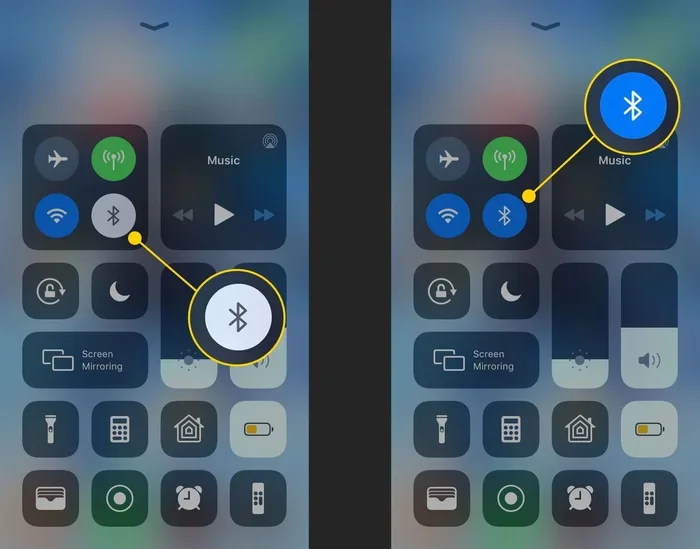
Now, grab your phone and go to the Bluetooth settings. On iPhone, open the Settings app and tap “Bluetooth.” On Android, swipe down from the top of the screen and tap the Bluetooth icon, or go to Settings and select “Bluetooth.”
Make sure Bluetooth is turned on. Your phone will start scanning for available devices. Within a few seconds, your car stereo should appear in the list of available devices. Tap on it to begin the pairing process.
Step 3: Confirm the Pairing
Sometimes, you will see a pairing request on both your car stereo and your phone. A PIN code or passkey may appear on one or both screens. If so, enter the code on the other device to confirm the connection. On many newer devices, pairing happens automatically without any code.
Once the pairing is confirmed, you should see a message saying “Connected” or a Bluetooth icon showing up on both screens. At this point, your Bluetooth connection is active, and you can start streaming audio or making calls.
Step 4: Test Your Connection
Play some music from your phone and check if it comes through your car speakers. Try making a test call to ensure the microphone and speakers work properly. If everything sounds good, you are all set!
Quick Tip: If your car does not automatically connect when you get in, go back to your Bluetooth settings and make sure the “Auto-Connect” or “Remember This Device” option is turned on. This saves you from having to repeat the pairing process every time you get behind the wheel.
Common Bluetooth Pairing Problems and How To Fix Them
Even with the best Bluetooth car audio systems, you can run into issues from time to time. Here are the most common problems and their solutions.
Device Not Showing Up in the List
If your car stereo or phone does not appear in the list of available devices, the first thing to check is the distance between them. Bluetooth range is typically about 30 feet (10 meters). Make sure both devices are close together and that there are no large metal objects blocking the signal.
Next, make sure both devices are in discoverable mode. Some devices only stay discoverable for a short time, usually around two minutes. If too much time has passed, restart the discovery process on both devices. Also, check that neither device is already connected to another Bluetooth device, as this can cause conflicts.
Paired but No Audio
Sometimes two devices pair successfully, but you hear no sound. This is a common Bluetooth pairing issue and usually has a simple fix. First, check the volume on both your phone and your car stereo. Then, make sure the correct audio profile is selected. Bluetooth supports two main profiles: Hands-Free Profile (HFP) for calls and Advanced Audio Distribution Profile (A2DP) for music. Make sure A2DP is enabled for audio streaming.
Connection Drops Frequently
If your Bluetooth connection keeps dropping, interference might be the culprit. Other wireless devices, Wi-Fi routers, and even USB 3.0 ports can disrupt Bluetooth signals. Move away from potential sources of interference and try again.
Another common cause is an outdated Bluetooth version on one of your devices. Check for software updates on both your phone and car stereo. Updating the firmware often resolves connection stability issues.
Phone Connects but Car Stereo Does Not
In some cases, your phone connects to your car stereo for calls but music does not stream. This usually happens because the audio profile is not set correctly. Go to your phone’s Bluetooth settings, find your car stereo, and check the media audio toggle. Make sure it is turned on.
Tips To Get the Best Bluetooth Connection in Your Car
Want to get the most out of your Bluetooth car connection? Follow these practical tips to improve your experience.
Keep Your Devices Updated
Software updates often include Bluetooth improvements and bug fixes. Make sure your phone and your car stereo firmware are up to date. On your phone, check for system updates in your settings. For your car stereo, consult your owner’s manual or visit the manufacturer’s website for firmware download instructions.
Minimize Interference
Other wireless devices can interfere with your Bluetooth signal strength. If you have a wireless charger, dash cam, or other Bluetooth devices in your car, try turning them off temporarily to see if they are causing interference. Keeping the number of active wireless devices to a minimum helps maintain a strong, stable connection.
Delete Old Pairings
If your car stereo has paired with many devices in the past, it can get crowded. Go into your car stereo’s Bluetooth settings and remove any old or unused pairings. This frees up memory and helps your car find your phone faster when you get in the vehicle.
Restart Before Pairing
Restarting both your phone and your car stereo before attempting to pair is one of the simplest and most effective troubleshooting steps. A fresh restart clears temporary glitches and refreshes the Bluetooth hardware on both devices. This small step solves more pairing problems than most people realize.
Use the Right Audio Settings
Your phone has different audio output options. When Bluetooth is connected, make sure your phone is set to output audio through the Bluetooth device rather than the phone speaker or a wired connection. On most phones, you can access this by pulling down the notification shade and tapping the audio output icon.
Bluetooth Pairing Mode Across Different Devices
Bluetooth pairing mode works a bit differently depending on the device you are using. Here is a quick look at how it works across common devices.
iPhone and Car Stereos
Apple devices make Bluetooth pairing very user-friendly. When you turn on Bluetooth on your iPhone, it automatically searches for nearby devices. If your car stereo is discoverable, it should appear right away. Tap on the car stereo name, and your iPhone handles the rest. iOS also supports Apple CarPlay, which provides an even more seamless experience when paired through Bluetooth or USB.
Android and Car Stereos
Android phones offer similar Bluetooth connectivity but with a few extra options. When you tap “Pair new device” in your Bluetooth settings, your Android phone will scan for available devices. Android also supports Android Auto, which mirrors your phone’s interface on your car’s display for navigation, music, and calls.
Tablet and Laptop Pairing
You can also pair tablets and laptops with your car stereo using Bluetooth pairing mode. The process is the same as with a phone. Just make sure your tablet or laptop has Bluetooth enabled and is set to discoverable mode. Some laptops may require you to install a specific Bluetooth driver for car stereo compatibility.
Comparison Table: Bluetooth Pairing Across Devices
| Device Type | Pairing Steps | Auto-Reconnect | Audio Profiles Supported |
|---|---|---|---|
| iPhone | Settings > Bluetooth > Tap car name | Yes | HFP, A2DP |
| Android Phone | Settings > Bluetooth > Tap car name | Yes | HFP, A2DP, AVRCP |
| iPad / Tablet | Settings > Bluetooth > Tap car name | Yes | HFP, A2DP |
| Laptop (Windows) | Settings > Devices > Add Bluetooth | Usually | HFP, A2DP |
| Laptop (Mac) | System Preferences > Bluetooth > Connect | Yes | HFP, A2DP |
When To Use a Bluetooth Adapter Instead
If your car stereo does not have built-in Bluetooth, you are not out of luck. A Bluetooth adapter or wireless car kit can add Bluetooth connectivity to almost any car audio system. These small devices plug into your car’s auxiliary input or cigarette lighter and create a Bluetooth receiver that your phone can connect to.
Bluetooth adapters are affordable and easy to install. Most plug into the auxiliary port on your car stereo and pair with your phone just like a built-in system would. Some adapters also support microphone input, allowing you to take hands-free calls through the car’s speakers and microphone.
When choosing a Bluetooth adapter, look for one that supports Bluetooth 5.0 or newer for the best range and audio quality. Also check if it supports the A2DP profile for music streaming and the HFP profile for calls. A good adapter can transform an older car into a modern wireless car setup without expensive upgrades.
Expert Insights on Bluetooth Pairing Mode
We spoke with automotive technology experts to get their top tips for mastering Bluetooth pairing mode. Here is what they had to say.
Start fresh when troubleshooting. Experts recommend deleting the existing pairing on both devices and starting the process from scratch. This clears any corrupted data that might be causing the issue. “Nine times out of ten, a fresh pairing solves the problem,” says one automotive tech specialist.
Keep your car stereo firmware updated. Many car owners do not realize that their infotainment system receives software updates just like a phone. These updates often improve Bluetooth performance and fix compatibility issues with newer phones. Check your car manufacturer’s website or owner’s manual for update instructions.
Be patient during the first connection. The first time you pair a device, it can take longer than usual because the devices are exchanging security keys and storing connection data. Subsequent connections are much faster because this information is already saved. Do not panic if the first connection takes a minute or two.
Common Mistakes To Avoid When Pairing Bluetooth
Avoid these common mistakes to save time and frustration when setting up your Bluetooth connection.
- Not putting both devices in discoverable mode. If your car stereo is not in pairing mode, your phone will never find it.
- Ignoring distance requirements. Bluetooth has a limited range. Keep devices within 30 feet of each other during pairing.
- Forgetting to turn off Bluetooth on other devices. If your phone is already connected to headphones or a smartwatch, it might not connect to your car stereo properly.
- Skipping firmware updates. Outdated software is one of the leading causes of Bluetooth pairing problems.
- Not checking audio profile settings. If music does not play through your car speakers, check that the A2DP profile is enabled.
- Trying to pair too many devices at once. Most car stereos can only maintain a few active pairings at a time. Remove old ones to make room for new connections.
Conclusion
Bluetooth pairing mode is a simple but powerful feature that brings wireless convenience to your car. From hands-free calling to streaming your favorite playlists, a successful Bluetooth connection makes every drive more enjoyable and safer. Now that you know exactly what Bluetooth pairing mode is and how to set it up, you can connect your devices with confidence.
Remember the key steps: put both devices in discoverable mode, confirm the pairing, and test your connection. If you run into issues, restart both devices, check for updates, and remove old pairings. With these tips in your toolkit, you will handle any Bluetooth pairing challenge that comes your way.
Take a few minutes today to set up or refresh your Bluetooth car connection. You will wonder how you ever drove without it. Happy connecting!